

MCP クライアント構成をインポートする
このウォークスルーでは、コーディングアシスタントに構成されている Model Context Protocol サーバー——コマンドラインから起動する 2 つと、他者が運用する 1 つ——をインポートし、Kubernetes 向けにサーバーをビルドします。これにより、クラスター内で動作するエージェントが同じツールにアクセスできるようになります。インポートは、ビルドが読み込むすべてのファイルを下書きします。各サーバーのコマンドラインまたはアドレス、それを実行する実現、そして GitHub サーバーのトークンの取得元です。以下のすべてのファイルと出力ブロックは実際の実行から得たものです。構成とウォークスルーの各段階は import-mcp サンプルにあり、そこではチェックスクリプトがインポートを再実行し、書き出した内容、表示した内容、このページが引用するブロックを、そこに保存されたファイルと比較し、インポートが書き出したものを検証してビルドします。
サンプルを生成する
このインポートは、このページのコマンドで実行することも、AI アシスタントに実行させることもできます。
例の名前を付けた新しいフォルダーに例を書き出します。
aggrega scaffold --example import-mcpその後、次に実行するコマンドを表示します。最初のコマンドは新しいフォルダーに移動します。それに続く以下のコマンドは、新しいフォルダーの source フォルダーに移動します。このフォルダーには、このページがインポートするものが入っており、インポートはここで実行します:
cd import-mcp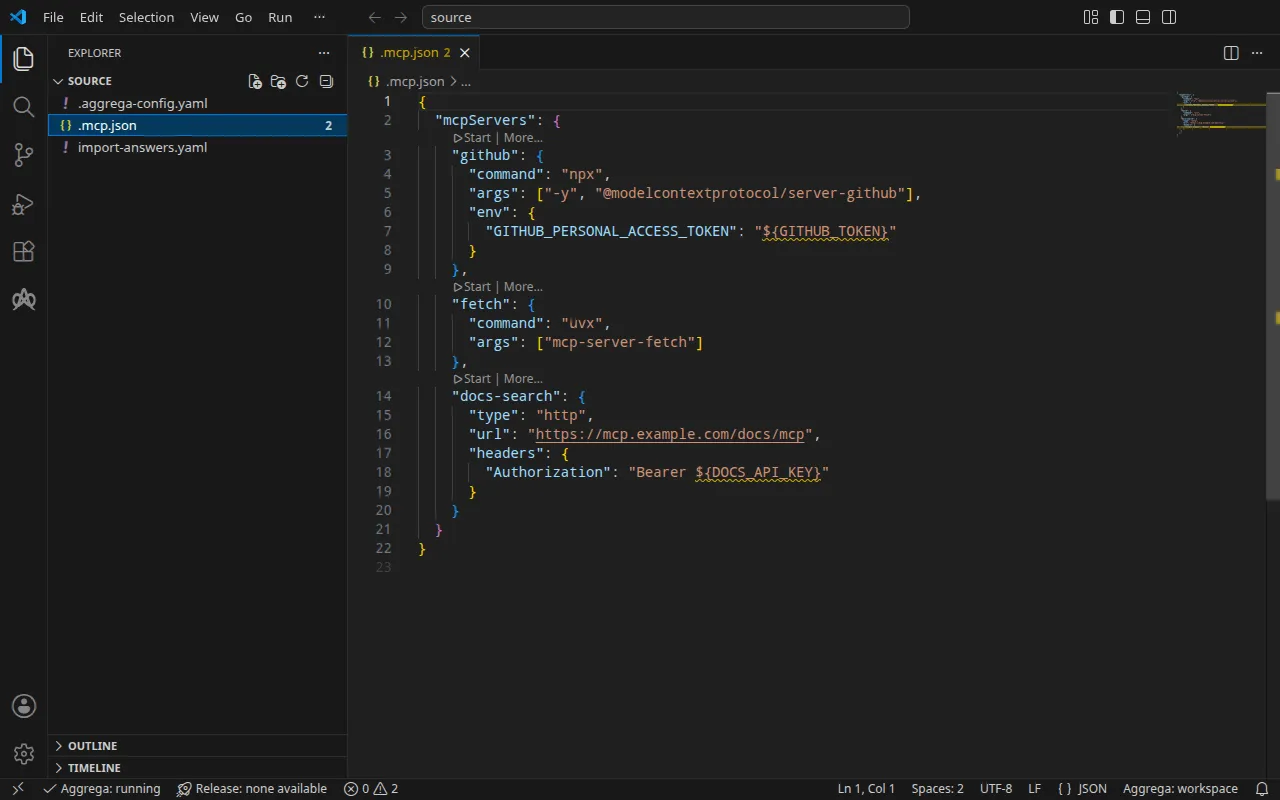
構成
プロジェクトのルートにある、Claude Code の .mcp.json:
{ "mcpServers": { "github": { "command": "npx", "args": ["-y", "@modelcontextprotocol/server-github"], "env": { "GITHUB_PERSONAL_ACCESS_TOKEN": "${GITHUB_TOKEN}" } }, "fetch": { "command": "uvx", "args": ["mcp-server-fetch"] }, "docs-search": { "type": "http", "url": "https://mcp.example.com/docs/mcp", "headers": { "Authorization": "Bearer ${DOCS_API_KEY}" } } }}インポートは、Claude Desktop の claude_desktop_config.json、Cursor の .cursor/mcp.json、Visual Studio Code の .vscode/mcp.json、および MCP レジストリの server.json も同じ方法で読み込みます。構成の横にある .aggrega-config.yaml によって、このフォルダはワークスペースになります:
# The workspace key marks this directory as the workspace root, so an import run# here writes its drafts beside .mcp.json.workspace: {}# The registry the importer is fetched from the first time an import needs it.default_registry: hub.aggrega.ai--target はカタログの Recipes から Manifest を下書きします。ワークスペースはカタログフォルダーを指定していないため、インポートはインポーターの取得元であるレジストリから標準ライブラリのカタログを読み込みます。これは公開されたカタログの署名付きスナップショットで、最初のインポートが取得・検証してワークスペースのコンテンツキャッシュに保持し、インポートが下書きの隣に書き込む記録の中でそのダイジェストによって示されます。AGGREGA_CATALOG_DIRS または workspace.catalog_dirs で独自のカタログフォルダーを指定しているワークスペースは、代わりにそれらに対してインポートします。
回答ファイル
Kubernetes では、GitHub サーバーはクラスターが保持する Secret からトークンを読み込みますが、どの MCP 構成もその Secret を指定していません。構成はシェルの GITHUB_TOKEN からトークンを読み込みます。そのため、インポートは Secret の名前を尋ねます。この例では、インポートが探す場所である .mcp.json の隣の import-answers.yaml に回答を保持しています:
# Values the import could not draft from the source, keyed by the drafted file and the key path inside# it. Write each one beside its key; an import of the same source, and a sync, read them from here and# ask nothing. A secret is never written here: its key asks where the secret comes from — a variable# name, ${NAME}, or the name of a Kubernetes Secret.release.yaml: # The origin of the secret value, written by the operator in the Release. Read exactly as # values.origin is. Write it here or in values.origin, never in both. A secret: name where it comes # from, never the value. spec.components.github.features.server_env.infra.origin: "github-mcp-token"インポートは、回答なしで初めて実行されたときに、このファイルを自ら書き込みました。質問できるターミナルがなかったため、それ以外のすべてを下書きし、Secret の名前を空のままにし、そのキーをファイルに列挙して、次のメッセージで停止しました
1 value the drafts leave empty is still owed, listed in the answers file <workspace>/import-answers.yaml: write it beside its key there, then run the import againターミナルでは代わりに質問を行い、次回のインポートのために回答をファイルに書き込みます。回答は Secret の名前 github-mcp-token であり、トークンではありません。インポートの回答ファイルで、このファイルと質問を詳しく説明しています。
aggrega import には、別の場所に保存された回答ファイルを指定する --answers を含め、このコマンドが受け付けるすべてのフラグが記載されています。
source に移動します:
cd sourceインポートを実行する
aggrega import .mcp.json --target helm標準出力には書き出したものが一覧表示されます:
wrote aggregate.yamlwrote release.yamlwrote manifest.yamlwrote .aggrega-import.json標準エラーには次のように出力されます(<workspace> は実行したフォルダーを表します):
[… omitted: a warning that the importer runs unverified, printed where its module is read from beside its Plugin entity in a catalog folder rather than fetched]read as the mcp format, with drafted paths relative to <workspace>warn: the value of infra.stdio_command.0 of node github is carried as written in the Release the draft writes: the field belongs to an MCP server's configuration, which can carry a key, and setting empty_credentials to marked or all writes it emptywarn: the value of infra.stdio_command.1 of node github is carried as written in the Release the draft writes: the field belongs to an MCP server's configuration, which can carry a key, and setting empty_credentials to marked or all writes it emptywarn: the value of infra.stdio_command.2 of node github is carried as written in the Release the draft writes: the field belongs to an MCP server's configuration, which can carry a key, and setting empty_credentials to marked or all writes it emptywarn: the value of infra.stdio_command.0 of node fetch is carried as written in the Release the draft writes: the field belongs to an MCP server's configuration, which can carry a key, and setting empty_credentials to marked or all writes it emptywarn: the value of infra.stdio_command.1 of node fetch is carried as written in the Release the draft writes: the field belongs to an MCP server's configuration, which can carry a key, and setting empty_credentials to marked or all writes it emptywarn: the value of headers.Authorization of node docs-search is carried as written in the Release the draft writes: the field belongs to an MCP server's configuration, which can carry a key, and setting empty_credentials to marked or all writes it emptywarn: the value of infra.endpoint of node docs-search is carried as written in the Release the draft writes: the field belongs to an MCP server's configuration, which can carry a key, and setting empty_credentials to marked or all writes it emptyPull complete: <workspace>/release.lock (entities=7, source_artifacts=0, external_inputs=0)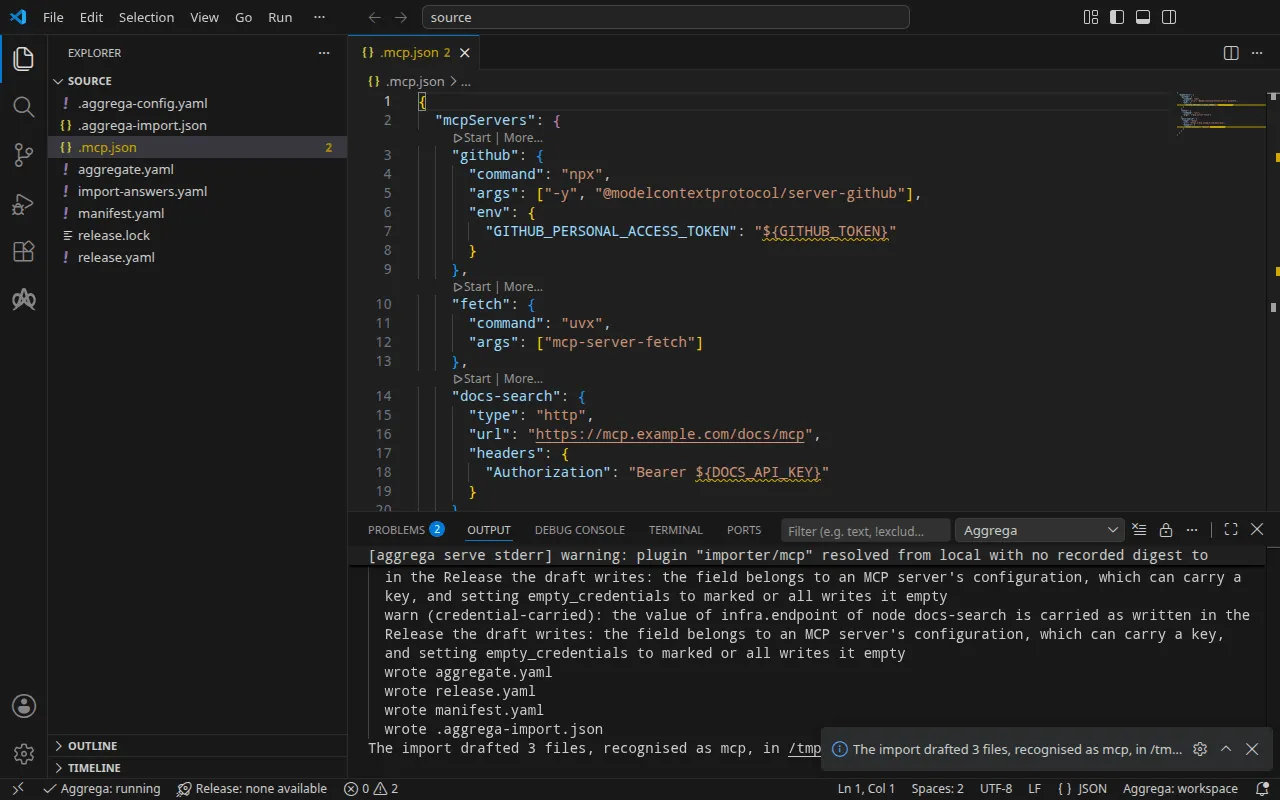
どのサーバーも標準ライブラリの MCP ツール core/ai-tool/mcp のインスタンスであるため、インポートは候補を評価せず、mapped 行も表示しません。
warn行は、サーバーの構成が保持する値を示します。どの MCP クライアントもそれらを資格情報としてマークしませんが、どの値も資格情報を含みうるため——コマンドライン引数内のキーや、アドレス内のトークンなど——インポートは、含まれていたコマンドラインの各項目、各ヘッダー、各アドレスを、値ではなくサーバーと位置によって示します。下書きを共有する前にそれらを確認してください。envの値${GITHUB_TOKEN}は変数参照にすぎないため、それ自体の値を保持せず、どの警告もそれを挙げません。Pull completeの行は、インポートが、ドラフトされた Release の依存先をaggrega pullと同じようにrelease.lockへ取得していることを示します。これにより、ドラフトはすぐに検証とビルドができます。--offlineの場合、インポートは何も取得せず、実行すべきaggrega pullを示します。
書き出される内容
Aggregate、Release、Manifest の名前は imported/mcp です。クライアントの設定には独自の名前がないため、ファイル名 .mcp.json から名前が付きます。レジストリの server.json には、その name から名前が付きます。名前空間は、インポーターの target_namespace 設定が定めるもので、別のものを設定しない限り imported です(設定)。
aggregate.yaml——サーバーごとに 1 つのインスタンスがあり、それらを使用するものはまだありません:
apiVersion: aggrega.ai/v1beta1kind: Aggregatemetadata: name: imported/mcp version: 0.1.0 description: Draft Aggregate imported from a source in the mcp format.spec: components: github: type: core/ai-tool/mcp fetch: type: core/ai-tool/mcp docs-search: type: core/ai-tool/mcprelease.yaml——構成に記載されているとおりの、各サーバーの実行方法または到達方法と、GitHub サーバーのトークンの読み取り元となる Secret です:
apiVersion: aggrega.ai/v1beta1kind: Releasemetadata: name: imported/mcp # environment is a drafted default, since no source names the environment this Release deploys to; change it to name the one it deploys to. environment: development version: 0.1.0 description: Draft Release imported from a source in the mcp format.spec: aggregate: imported/mcp manifest: imported/mcp components: github: infra: stdio_command: - "npx" - "-y" - "@modelcontextprotocol/server-github" stdio_runtime: npm features: server_env: type: core/referenced-secret infra: # Left for the Release, since the source cannot supply it: the name of a Kubernetes Secret already in the namespace holding the environment github is started with, one data key per variable, each named as the variable it holds: GITHUB_PERSONAL_ACCESS_TOKEN. origin: "github-mcp-token" fetch: infra: stdio_command: - "uvx" - "mcp-server-fetch" stdio_runtime: pypi # The headers the source sends this server, which no infrastructure key of core/ai-tool/mcp takes, since a remote server's credential is held by each consumer, on its connection to the tool: # - Authorization: "Bearer ${DOCS_API_KEY}" docs-search: infra: endpoint: "https://mcp.example.com/docs/mcp"- 環境
developmentは、どの構成も環境を指定していないためにインポートが書き込む既定値です。Release を別の場所にデプロイする場合は変更してください。 stdio_runtimeは各コマンドから読み取られます。npxは npm パッケージを、uvxは PyPI パッケージを実行します。- GitHub トークン。サーバーの環境はその
server_envスロットになります。Kubernetes では、core/referenced-secret-setの実現であるhelm/k8s-secret-setが、与えられた値をビルドがレンダリングする Secret に書き込むため、トークンがファイルに含まれてしまいます。そのため--target helmでは、インポートは代わりにcore/referenced-secretをアタッチし、クラスターがすでに保持している Secret——回答であるgithub-mcp-token——を、変数ごとに 1 つのデータキーGITHUB_PERSONAL_ACCESS_TOKENとともに指定します。ブリッジはその Secret のすべてのデータキーを同名の変数としてインポートするため、サーバーは手元のマシンと同じようにトークンを読み取り、レンダリングされたどのファイルにもトークンは含まれません。 Authorizationヘッダーはコメントのまま残ります。リモートサーバーの資格情報は、それを呼び出す側が、ツールへの自身の接続上で保持するものであり、このワークスペースにはまだ呼び出し側がありません。エージェントをdocs-searchに配線するときに、ヘッダーをその接続に設定します。
manifest.yaml——サーバーごとに名前で指定した 1 つの実現と、Secret の実現です:
apiVersion: aggrega.ai/v1beta1kind: Manifestmetadata: name: imported/mcp version: 0.1.0spec: mappings: components: type: {} name: github: helm/mcp-stdio-bridge fetch: helm/mcp-stdio-bridge docs-search: helm/mcp-remote features: type: core/referenced-secret: helm/k8s-existing-secret3 つの Kubernetes Recipes が core/ai-tool/mcp を実現します——1 つはイメージとして公開されたサーバー用、1 つはブリッジの背後で実行されるパッケージ用、1 つは他者が運用するサーバー用です——そして、どれが適合するかは各サーバーの性質であり、構成に記載されています。そのためインポートは各インスタンスを名前でマッピングします。コマンドラインから起動される github と fetch は、stdio ブリッジ helm/mcp-stdio-bridge の背後で実行されます。他者が運用する docs-search は helm/mcp-remote にマッピングされ、これは何も実行せずにアドレスを公開します。トークンの Secret は helm/k8s-existing-secret にマッピングされ、これは Secret を書き出すのではなく参照します。
release.lock は Release が解決されたカタログエンティティをダイジェストで記録し、.aggrega-import.json はインポートが書き出した内容の記録で、後の aggrega import --sync がこれを読み取ります。
Docker Compose の場合
サーバーは Docker Compose 上でも実行できます。aggrega import .mcp.json --target compose は github と fetch を compose/mcp-stdio-bridge に、docs-search を compose/mcp-remote にマッピングし、GitHub サーバーの環境を構成に書かれたとおりに保持します。つまり、値が変数参照 ${GITHUB_TOKEN} である core/referenced-secret-set のエントリで、compose/dotenv-secret-set によって実現されます。これはその参照を書かれたとおりにサービスの環境に書き込むため、スタックの起動時に Docker Compose がシェルから値を埋めます。このインポートは何も尋ねず、回答ファイル内の Secret の名前を使わずにそのまま保持します。
検証とビルド
aggrega validate --release release.yamlaggrega build --release release.yaml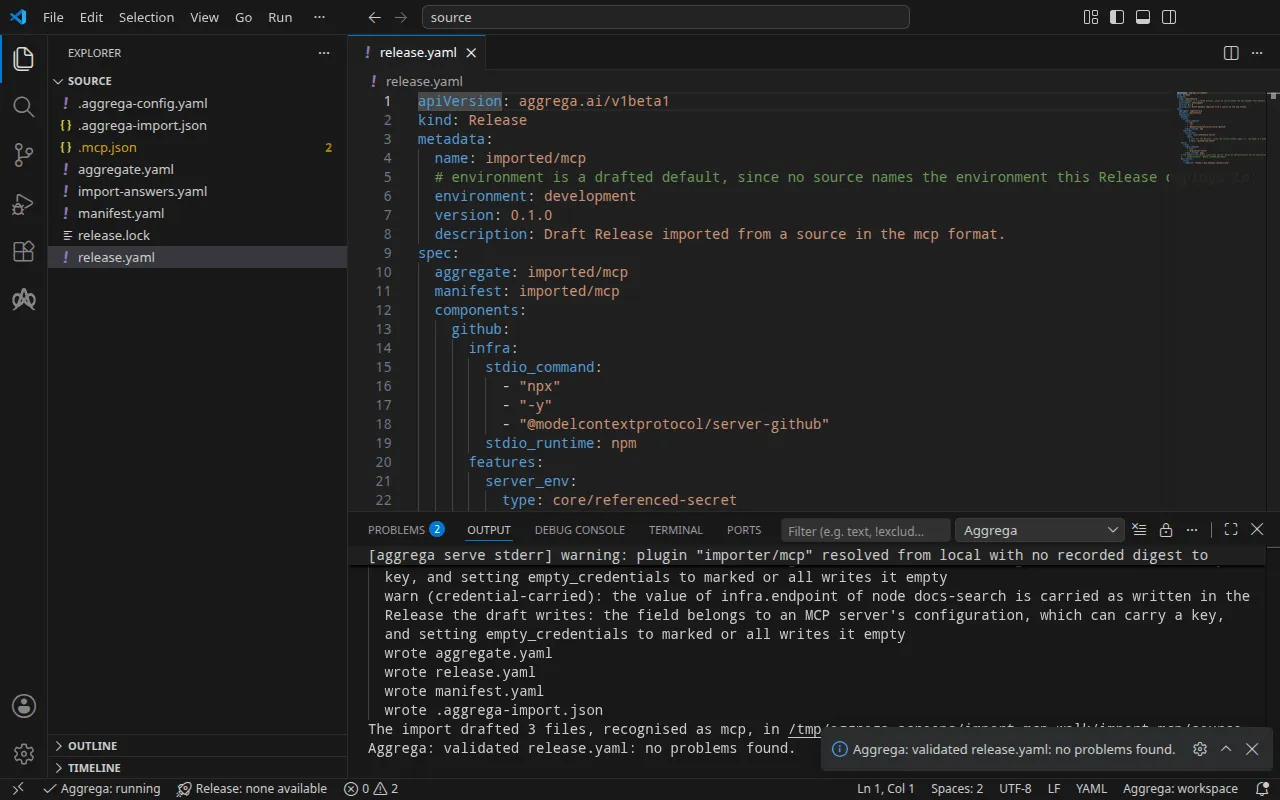
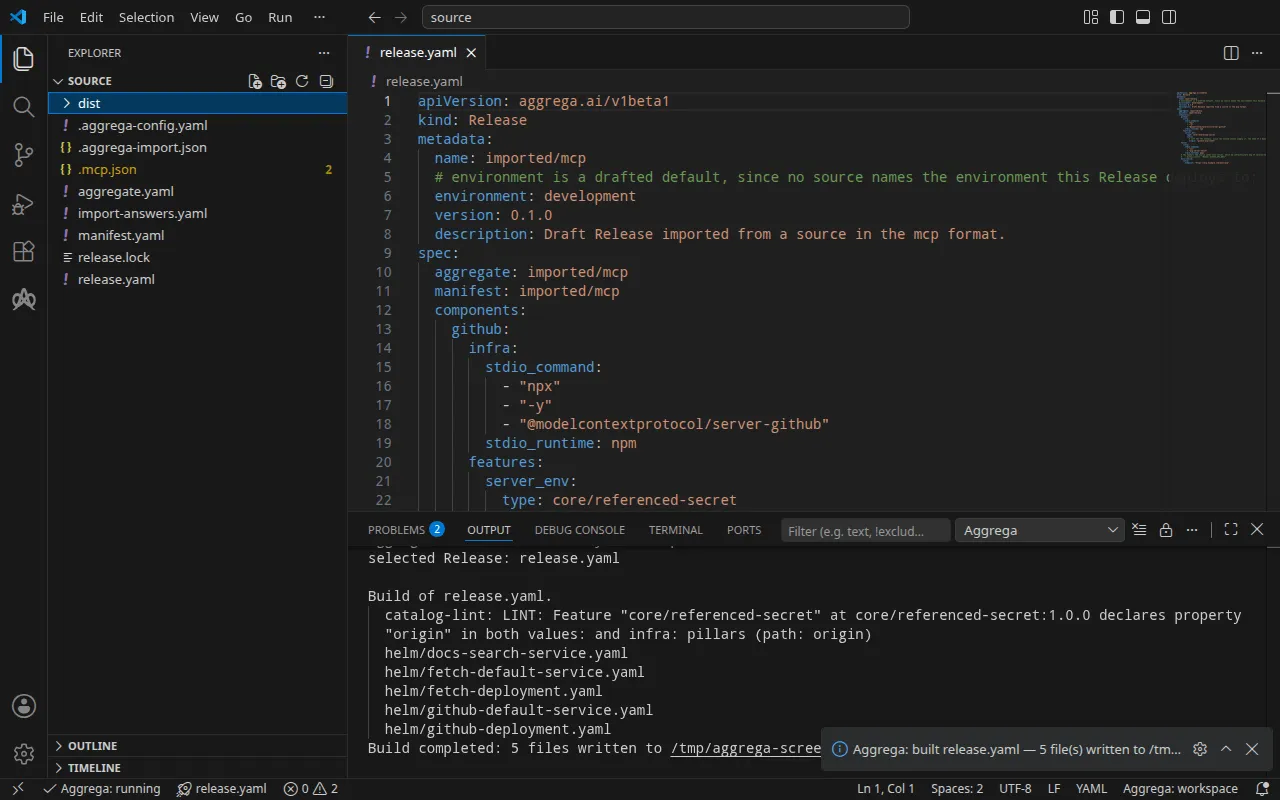
検証の出力は次のとおりです:
notice: LINT: Feature "core/referenced-secret" at core/referenced-secret:1.0.0 declares property "origin" in both values: and infra: pillars (path: origin)release dependency validation passed: release.yaml (schema-pillar + dependency pillars)そしてビルドは次のとおりです(<workspace> は実行したフォルダーを表します):
notice: LINT: Feature "core/referenced-secret" at core/referenced-secret:1.0.0 declares property "origin" in both values: and infra: pillars (path: origin)[… omitted: a total build time, which differs per run]Build completed: 5 files written to <workspace>/distnotice 行は助言的なものです。Feature は origin を Aggregate の values または Release の infra から受け取り、この通知は 1 つのリーフが両方で宣言されていることを報告します。判定は何も変わりません。
ビルドは dist/helm/ の下に、ブリッジされた 2 つのサーバーそれぞれについて Deployment と Service を 1 つずつ、docs-search について Service を 1 つ書き出します。dist/helm/github-deployment.yaml 内の GitHub サーバーのコンテナは、サーバーのコマンドラインでブリッジを実行し、環境を Secret から取得します:
containers: - name: main image: ghcr.io/supercorp-ai/supergateway:4.1.0@sha256:1938c43538a5308bce07d58028e9de00b7acfecb40b39b059b2f3931800ad910 args: - --stdio - '''npx'' ''-y'' ''@modelcontextprotocol/server-github''' - --outputTransport - streamableHttp - --stateful - --port - "8080" - --streamableHttpPath - /mcp - --healthEndpoint - /healthz ports: - name: http containerPort: 8080 env: - name: MCP_TOOL_SIDE_EFFECTS value: mutating - name: MCP_TOOL_TIMEOUT_SECONDS value: "30" - name: MCP_TOOL_PORT value: "8080" envFrom: - secretRef: name: github-mcp-token [… omitted: the container's resources and its readiness probe]dist/helm/docs-search-service.yaml は何も実行しません。他者が運用するサーバーに、クラスター内での名前を与えるだけです。
apiVersion: v1kind: Servicemetadata: name: docs-search [… omitted: the labels and annotations the build writes on every resource]spec: type: ExternalName externalName: mcp.example.com ports: - port: 443AI アシスタントを使う
Aggrega のツールでセットアップした AI アシスタントでも同じことができます。次のプロンプトを貼り付けてください。
Aggrega のツールだけを使い、自分ではフォルダーを作成しないでください。ワークスペースフォルダーにまだ `import-mcp` フォルダーがない場合は、`example` を `import-mcp` に設定し、`dir` を指定せずに `scaffold` ツールを 1 回呼び出してください。これは新しい `import-mcp` フォルダーに例を書き込み、その `source` フォルダーにこのページがインポートするものが入ります。次に、`workspace_root` を `import-mcp/source`、`source` を `.mcp.json`、`target` を `helm` に設定して `import` ツールを呼び出してください。これは必要な回答を `.mcp.json` の横にある `import-answers.yaml` から読み取り、下書きを `import-mcp/source` に書き込み、それらに必要なものをプルします。次に、`workspace_root` を `import-mcp/source`、`release` を `release.yaml` に設定して `validate` ツールを呼び出し、`workspace_root` を `import-mcp/source`、`release` を `release.yaml`、`write` を true に設定して `build` ツールを呼び出してください。ビルドが書き込んだファイルを教えてください。それらは `import-mcp/source/dist/` の下にあります。VS Code で開く
Visual Studio Code 用の Aggrega 拡張機能 をインストールしたら、インポートが下書きを書き込んだフォルダー import-mcp/source を VS Code で開きます。このフォルダーには Release が 1 つ、つまり下書きされた release.yaml があるため、エディターがそれを自動的に選択し、下書きを編集するたびにその Release に照らしてチェックし、見つかったものをファイル内と「問題」パネルに表示します。コマンドパレットの Aggrega: Show topology graph は、Release のコンポーネントとそれらの間の接続を描画します。Aggrega: Build、Aggrega: Preview build、Aggrega: Pull は同じ Release に対して動作し、それぞれアクティビティバーの Aggrega ビューにある Commands パネルのボタンとしても使えます。Build はフォルダーの dist/ にファイルを書き込みます。それ以外については Visual Studio Code で Aggrega を使う を参照してください。
実行する
ビルドは github-mcp-token Secret を書き出さないため、ファイルを適用する前に作成します。トークンを github-token.env に 1 行 GITHUB_PERSONAL_ACCESS_TOKEN=<your token> として書き込み、そこから Secret を作成します。これでクラスターがトークンを保持するので、ファイルは削除します:
kubectl create secret generic github-mcp-token --from-env-file=github-token.envrm github-token.envsecret/github-mcp-token createdインポートの実行方法 の実行手順で説明しているとおりにビルドを適用し、2 つのサーバーを待ちます:
kubectl apply -R -f dist/helm/kubectl wait --for=condition=Available deployment.apps/fetch deployment.apps/github --timeout=5mservice/docs-search createdservice/fetch-default createddeployment.apps/fetch createdservice/github-default createddeployment.apps/github createddeployment.apps/fetch condition metdeployment.apps/github condition metDocker Compose では、--target compose でインポートしてビルドしたワークスペースで、シェルの GITHUB_TOKEN にトークンを設定してスタックを起動します。Docker Compose はスタックの起動時にこれを読み取ります:
docker compose -p mcp -f dist/compose/docker-compose.yaml up -d --waitテストする
ブリッジは、MCP の Streamable HTTP トランスポートで、ポート 8080 の /mcp で各サーバーを提供します。MCP の initialize リクエストで fetch サーバーにセッションを開くよう求めます。このリクエストはトークンを読み取りません。
Docker Compose では、スタックのネットワーク mcp_compose 上の使い捨てコンテナから送信します。このネットワークでのサーバー名は fetch です:
docker run --rm --network mcp_compose curlimages/curl:8.11.1 -sS http://fetch:8080/mcp \ -H 'Content-Type: application/json' -H 'Accept: application/json, text/event-stream' \ -d '{"jsonrpc": "2.0", "id": 1, "method": "initialize", "params": {"protocolVersion": "2025-06-18", "capabilities": {}, "clientInfo": {"name": "test-it", "version": "1.0.0"}}}': keepalive
[… omitted: the same comment, repeated while the server starts]
event: messagedata: {"jsonrpc":"2.0","id":1,"result":{"capabilities":{"prompts":{"listChanged":false},"resources":{"listChanged":false,"subscribe":false},"tools":{"listChanged":false}},"protocolVersion":"2025-06-18","serverInfo":{"name":"mcp-fetch","version":"2026.11.11"}}}Kubernetes では、ローカルポートをサーバーの Service fetch-default へフォワードし、コマンドは実行したままにします:
kubectl port-forward svc/fetch-default 8080:8080別のターミナルから、転送したポートに同じリクエストを送ります。
curl -sS http://127.0.0.1:8080/mcp \ -H 'Content-Type: application/json' -H 'Accept: application/json, text/event-stream' \ -d '{"jsonrpc": "2.0", "id": 1, "method": "initialize", "params": {"protocolVersion": "2025-06-18", "capabilities": {}, "clientInfo": {"name": "test-it", "version": "1.0.0"}}}': keepalive
: keepalive
event: messagedata: {"jsonrpc":"2.0","id":1,"result":{"capabilities":{"prompts":{"listChanged":false},"resources":{"listChanged":false,"subscribe":false},"tools":{"listChanged":false}},"protocolVersion":"2025-06-18","serverInfo":{"name":"mcp-fetch","version":"2026.11.11"}}}応答にはサーバー名 mcp-fetch が示されます。応答には時間がかかります。ブリッジはセッションごとにサーバーのコマンドライン uvx mcp-server-fetch を起動し、uvx はまずサーバーのパッケージをダウンロードしてインストールするためです。この実行では、Kubernetes で約 30 秒、Docker Compose で約 1 分かかりました。: keepalive 行は、その間にストリームが送るコメントです。
GitHub サーバーは、Docker Compose では http://github:8080/mcp で、Kubernetes では kubectl port-forward svc/github-default 8080:8080 を通じて、同じリクエストに応答します。initialize はトークンを読み取らないため、トークンの内容にかかわらず応答します。この実行ではプレースホルダーのトークンを使いました:
[… omitted: the keepalive comments, sent while npx installs the server]event: messagedata: {"result":{"protocolVersion":"2024-11-05","capabilities":{"tools":{}},"serverInfo":{"name":"github-mcp-server","version":"0.6.2"}},"jsonrpc":"2.0","id":1}ポートフォワードを停止してから、適用したものと Secret を削除します:
kubectl delete -R -f dist/helm/kubectl delete secret github-mcp-tokenDocker Compose では、スタックを停止して削除します:
docker compose -p mcp -f dist/compose/docker-compose.yaml down