

The Aggrega view
The topology graph opens in a panel of its own, described in The topology graph, and the commands the Commands panel’s buttons run are described in Commands.
Aggrega activity-bar view — four panels in reading order: Commands, Registries, Catalog and Plugins. The other three list what your configuration and the workspace hold, and each opens with the operations acting on what it lists, as labelled rows at the head of its list; every other operation is a labelled button on the Commands panel, so each operation has one place to look for it. An operation acting on one particular registry, entity or plugin is on that row.
The Commands panel is headed by three single-line rows naming what the editor is acting on — Project folder, then Aggrega workspace, then Release — each opening its own picker. The middle row draws its name shortened, as Agg. worksp., so that each row’s value has more of the panel’s width; its hover names it in full, as Aggrega workspace, and so does every message about it. Their values stand in one column, after the widest of the three labels; in a panel too narrow for that label, it is cut short with an ellipsis rather than pushing the panel sideways, and the row’s hover still says which it is. They are in that order because each sits inside the one above it, and the arrangement is how that is shown rather than explained. The middle row keeps the product name, shortened or not, because “workspace” on its own already names the set of folders your window has open. The Aggrega workspace row names the folder the language server anchored to, which is what the Release list is computed against; hovering it gives the full path and, when it differs from the folder you opened, names that one too — so you can find out why the offered Releases are the ones they are. Where your window has exactly one folder open, the Project folder row’s hover says it is the only one, rather than leaving you to open a list of one, and closes on what clicking the row offers there — opening a folder, or adding one to the window — and where no Release is selected and nothing has yet read what this Aggrega workspace offers, the hover says that instead of guessing at it. Where a level holds none, the hover names the way out of that state rather than telling you to choose: nothing selected and nothing to select read differently, because only the first is a decision waiting on you. A project holding no Aggrega workspace is answered by opening a folder that holds one or by creating one; an Aggrega workspace holding no Release, by working in a different one or by drafting a Release.
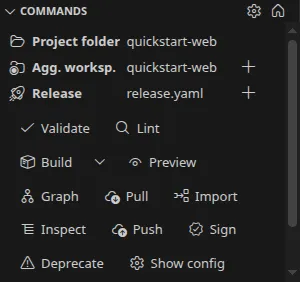
The Aggrega workspace and Release rows each carry a + at the right, beside the row rather than on it: pressing the row chooses among the ones that exist, and pressing the + opens the way to make a new one. The Release + opens the same drafting flow as Draft entity at the head of the Catalog panel, with the kind already settled: it asks for the name and nothing else, and the prompt says it is naming a Release. The Project folder row carries none — bringing a project folder into being is your editor’s business rather than Aggrega’s.
Where your Aggrega workspace is not the folder you opened — it sits above that folder, or inside it — the Aggrega workspace row carries one further control, which opens that workspace as your project folder. It is offered rather than done for you, and its name says what it costs as well as where it goes: opening a folder reloads the window, so the language server and this extension both restart and anything unsaved in the window goes with them. Where the folder you opened is itself the Aggrega workspace there is nothing to open, and the control is not drawn.
When a window opens on a folder whose Aggrega workspace sits outside it — neither that folder nor inside it — the editor also says so in a dialog you dismiss before going on: it opens with Aggrega is using a workspace from outside the folder you opened. and, beneath that, an Aggrega workspace: line and a Project folder: line giving the full path of each. Its buttons are Open workspace (reloads the window), which opens the Aggrega workspace as your project folder just as the row’s own control does; Continue here, which closes the dialog and changes nothing; and Don’t show again for this folder. Closing the dialog any other way — with Escape, or with its own close control — is the same as Continue here. The dialog appears once for a folder in each window, and again if the Aggrega workspace that folder belongs to changes; after Continue here it stays away until the window is reloaded or opened again, and then it returns. Don’t show again for this folder is remembered for that window and restored when you reopen it, so the dialog does not come back for that folder. None of the three dismisses the fact itself: for as long as the workspace sits outside your folder, the Aggrega workspace row carries a warning mark to the right of its value, and hovering the row gives the same headline and the same two paths the dialog shows. An Aggrega workspace inside the folder you opened is not outside it, so it raises no dialog and its row carries no mark and no such headline; hovering the row still names the folder you opened, and the control opening the workspace as your project folder is still drawn.
The dialog is drawn by your operating system unless the editor’s window.dialogStyle setting is custom, so by default it follows your desktop’s theme rather than the editor’s, and no extension can change how it looks; with window.dialogStyle set to custom the editor draws it in its own theme.
Clicking the Aggrega workspace row opens the choice whatever you have attached, including when that is one workspace or none: the picker lists the Aggrega workspaces your Project folder reaches — walking up from it, and looking through everything inside it — each named by its own root, and, last, a way to reach a folder your window does not have open at all: Choose another folder Aggrega recognises…, or Choose a folder Aggrega recognises… where the picker has no workspace to list. That last entry is there because reaching is bounded by what your window holds: your editor only ever searches the folders you have open, so a workspace sitting somewhere else is reachable by adding its folder and by nothing shorter. The language server starts as soon as walking up has found somewhere to start, without waiting for that search to finish, so a window can attach and only a moment later report that a second workspace is reachable — the list in the picker catches up when the search returns. The Aggrega workspace this window last worked in is taken again straight away too, one you chose inside your Project folder included, because the editor asks that workspace’s own marker rather than waiting on the search; only once its marker has gone, or no longer marks a workspace your Project folder reaches, is the choice dropped, and you are told so. Choosing another entry moves the language server there and says so whether it is reached from the same folder as the one in use or from another, and choosing the entry already in use restarts nothing and says where the editor already works: Aggrega: the editor already works in ⟨path⟩., naming the workspace root in full. One Aggrega workspace reached from two open folders at once is one entry and counts as one: discovery climbs, so a root one level up answers for every folder beneath it, and asking which of those folders holds the workspace would be a question with two true answers.
Clicking the Project folder row opens the same kind of choice: the folders your window has open, each named by its own path, and, last, two ways to reach one it does not have. Open folder… asks for a folder with your editor’s folder dialog, whose button reads Open, and opens the folder you pick in this window in place of whatever it has open, as your editor’s own Open Folder does. That reloads the window, which the entry’s description says beforehand, and if the editor cannot open the folder you are told so. Add folder to this window… asks the same way, with a button reading Add, and adds the folder you pick to the window, after the ones already open, as the folder the editor works from: you picked it on this row, so the row names it rather than asking you again, and the Aggrega workspaces on offer are the ones it reaches. In a window already open on a workspace file the folder joins it in place, and you are told the editor now works from it. A folder the window already has open is not added again, and you are told so; if the editor refuses the folder, you are told that too, and the editor goes on working from the folder it was. Closing either dialog without picking changes nothing.
Adding a folder to a window holding a single folder, or none, makes the window a multi-root workspace, which your editor does by restarting its extensions — this one included — or, in a remote window such as a dev container, by reloading the window. Where the welcome page was open as the extensions restart, it is drawn again in its place, so the window still holds one page and it reads the window as it now is. Both Add folder to this window… and the Aggrega workspace picker’s last entry end in such an add, so where taking either would do that, its description says so beforehand. That workspace is new to your editor and starts without what the window you left remembered, except for the one answer the add itself gave: a folder added through Add folder to this window… is the Project folder there, and an Aggrega workspace chosen through the Aggrega workspace picker’s last entry, or through the welcome page’s Use a folder that already has one, is the Aggrega workspace there. The Release you had chosen, and the folders you had asked the dialog not to show again for, stay with the window you left.
Which one you choose is remembered for that window and restored when you reopen it, and it decides what the row beneath offers — the Aggrega workspaces on offer are the ones that folder reaches. Reaching is not the same as containing: because discovery climbs, the workspace a folder reaches is often the folder above it, so choosing a subdirectory of your repository still offers the repository’s own workspace. With one folder open there is nothing to choose and the row simply names it. With several and none chosen the row reads none selected, and the Aggrega workspaces on offer are the ones the whole window reaches. Where that is one, or where one of them is the one this window last worked in, the language server starts there; where there are several and none of them is remembered, it does not start until you choose one, and the status bar’s Choose Aggrega workspace… and a notification ask you to. A language server that stops or fails to start on its own leaves the Project folder row naming your folder — your workspace is still chosen, and it is the language-server indicator that reports the server.
Below those rows the operations are grouped by what you came to do: Build (validate, lint, build, preview, graph), Dependencies (pull), Author (import, inspect), Publish (push, sign, deprecate) and Configuration (show config, cache).
Alongside Commands sit a Registries panel, headed by Add registry and Update index and listing every registry the effective configuration declares; a Catalog panel, headed by Search catalog and Draft entity and listing the entities the workspace can see; and a Plugins panel, headed by Add plugin and Generate entities and listing the embedded and configured Wasm plugins. Those first rows are part of the panel’s own list: each is labelled and carries its icon, so it is visible without pointing at anything, pressing it runs the operation, and collapsing the panel folds it away with the rest. They are there whatever the list below them reads — including when it says nothing is configured, which is exactly when adding the first one is what you came for, and when it says no Aggrega workspace is available. Where one cannot run yet, it stays where it is and says why beside its name, in the words the Commands panel uses for the same state, and pressing it runs nothing. Each of those three panels also carries a refresh in its title bar, which re-reads that one list, and nothing else — an operation there would be an unlabelled icon you had to hover to find. Validate, build, preview build and lint report into the Problems panel; the command-line-backed operations stream their output to the Aggrega output channel.
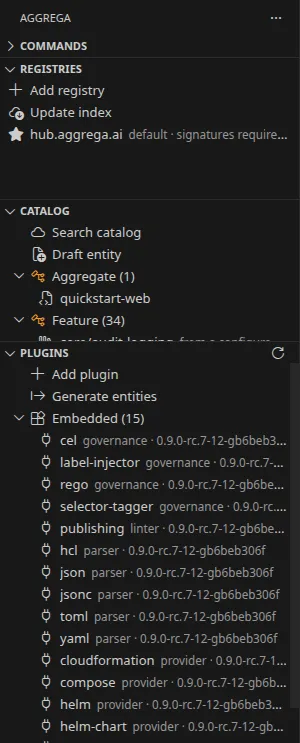
The Commands panel
-
One settings surface, reached from a cog — the Commands panel carries a cog at its top right, and it opens the editor’s own settings narrowed to this extension. There is no second settings page of the extension’s own, so a preference has one place it lives and one place it is written. Every preference is yours rather than the project’s; see Settings.
-
Two shapes for the Commands panel —
aggrega.operations.layoutchooses betweenbuttons, the default, where every operation is a labelled button in one continuous flow with no group titles at all, andsections, where each group is a section you open under its own title and the panel shows as much as you keep open. Both carry the same groups with the same operations, in the same order; the setting changes how a group is drawn, never which operations exist. In both shapes the Project folder, Aggrega workspace and Release rows sit above every operation, so closing a section never takes away the facts that say what an operation would apply to. Insectionsthe caret beside Build is a row of its own beneath it, reading Build options ahead of its chevron, so it does not read as a section to open. Changing the setting redraws the open panel and restarts nothing. The Commands panel opens with a larger share of the side bar than the three panels beside it — in a window 900 pixels tall, enough to show its whole flow at the side bar’s default width; the editor keeps the panels’ heights for each workspace from then on, so a workspace whose side bar has been laid out before keeps the heights it had. -
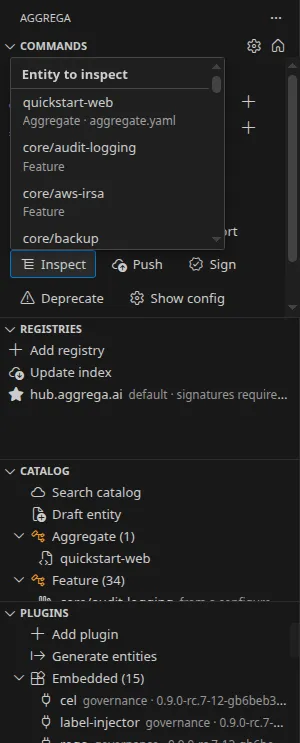
A button that offers a choice presents it beside itself — an operation that answers a press by asking which one or which entity to act on presents that choice as a menu beside the button you pressed rather than in a dialog that takes the whole window: Cache… offers the four cache operations, and Inspect and Push offer the entities the workspace can see. The menu opens beneath the button or above it, on whichever side the panel has more room, and is no taller than that room, so it never runs past the panel’s edge — a list longer than the room scrolls inside it — and its name, what it is choosing, stays at its head while you scroll. That holds wherever the panel is, docked in a short side bar included. The menu is reached by pressing the button and never by tabbing, so the panel still costs one stop however many menus it holds. Inside it, the arrow keys move between the choices and Enter takes the one you are on; typing narrows the list — the match is a fragment of a choice’s name or of the line beneath it, and the menu says how many are left — Backspace unwinds what you typed, Escape closes the menu and puts your focus back on the button, and pressing anywhere else — in the panel or anywhere else in the editor — closes it without running anything. The same operations are in the editor’s command index, where there is no button for a menu to open beside, so invoked from there each asks its question as a list you pick from.
-
A menu whose choices are asked for says it is reading — the menus Inspect and Push open hold nothing until the language server answers which entities the workspace holds, which is a read that shows progress and can be stopped. Both open with a line saying they are reading and fill in when the answer arrives, rather than opening empty: an empty list of choices reads as there is nothing, which is a different answer from wait. Whatever you typed while the read was in flight still applies once the choices arrive. Where there is nothing to offer — no entity the operation can name — the menu closes and a message says so, the same message you get running the operation from the command index, rather than a menu with nothing in it.
-
Choosing and consenting stay different acts — a menu is where you say which, and it never carries a confirmation. The three cache operations that remove something still put a modal confirmation in front of you after you choose, naming the caches that operation reaches, and generating Plugin entities still confirms before writing. A confirmation earns its interruption: folding one into an inline list would let a stray click empty a cache. The published-catalog search keeps its filter list, which you return to after editing each facet, because a menu is a poor fit for something re-entered after every answer.
-
What separates one group from the next, in each shape — in the flow, nothing is drawn between one group and the next: the groups decide the order the buttons come in, and the order is all that carries the grouping, so the panel spends no width on a divider. In the sections shape, the Publish group carries a rule above it, because its operations change what everyone resolving that catalog gets while the rest act on this machine — a difference in kind, which is worth marking once and has a group box to be marked on.
-
A narrow panel wraps rather than truncating or scrolling sideways — the flow takes as many lines as the width needs, and no break is fixed in place: widen the panel and the buttons repack onto fewer lines. Each button’s label is the operation’s name alone, with the explanation on its hover, so a line carries as many operations as it can. Nothing is hidden behind a sideways gesture, and no label is cut short.
-
Every operation asks for what it needs before it runs — an operation the panel can see is not runnable stays in place, greyed, and says why: hovering it names what is missing, and a screen reader announces it as unavailable with the same reason. It is not removed, because in a flow of buttons removing one moves the others under your pointer, and a press then lands on something other than what was there a moment ago — which is also why the caret beside Build stays beside it while Build cannot run, greyed with it, giving the same reason and opening nothing. Two conditions grey a control: the operations that act on a Release need one selected, and the ones that run the
aggregabinary need an anchored workspace folder to run in. An operation that needs only the language server is not greyed when the server is down — it reports the compiler’s own message when pressed, and the status bar is where that state is named. Push, sign and deprecate each ask for their subject first: push offers the entities the Catalog panel lists that have a document in the workspace, while sign and deprecate ask for a reference to an artifact already in a registry, because that is what those two amend. Deprecate also asks for a severity and a reason, which the compiler requires and has no way to ask you for from inside the editor. Pull runs against the selected Release rather than asking for a subject. The operations heading the Registries, Catalog and Plugins panels ask in the same way: adding a registry asks for the host and which configuration file to write it to, adding a plugin asks the two or three questions its type needs, generating Plugin entities asks what to cover and where to write, the published-catalog search opens a filter list you assemble before it runs, and drafting an entity asks for the kind and then a name. Each of them but Draft entity needs an anchored workspace folder, so without one each such row says so beside its name and pressing it runs nothing — you are told before you answer anything rather than after. Draft entity needs only the language server, so it is never drawn as unable to run.
The Registries, Catalog and Plugins panels
-
Registries panel detail — each row names the registry’s host, its alias where one is configured, which registry is the default, whether signatures are required for artifacts pulled from it, and whether a credential for that host is present. Reading the list contacts no registry: the credential state reports presence only, so it says a credential exists rather than that the registry would accept it.
The operations acting on the whole set are the panel’s first two rows — Add registry, and Update index, which updates the searchable index of every configured registry — while the operations that act on one registry are on that registry’s row: update the index for it alone, remove its stored credential, and remove the registry. The panel’s own title bar carries only the refresh.
Adding a registry and removing one each ask which configuration file to change, offering the global file shared by every project on this machine first, because that is where these two write unless you say otherwise; the other choice is this project’s own configuration file. Each of the two ends by naming the file it actually changed and how far that file reaches, read off what the compiler did rather than from what was asked for. The language server reads its configuration when it starts, so each of the two is followed by a restart of the language server, without asking, and the panel and the welcome page’s registry step are read again once it is back: the registry you added is listed, or the one you removed is gone, with no reload and no refresh. Once the restarted server has read the change, the ending adds that the change is now in effect; where the restart failed, it does not, because the change is then in the file and not yet in force.
Removing a registry and removing a credential each ask you to confirm first, and each says what the change reaches: the confirmation for a registry names the file you chose, so dropping an entry from the global file is described as affecting every project resolving through it and dropping one from this project’s own file as affecting no other project, while a credential is deleted from the shared credential store and the registry entry is left in place. Removing a credential offers no choice of file, because the credential store is shared by every project on the machine and has no per-project form to write to.
Building the index shows progress and can be stopped, and it is the only one of these offered with a Cancel button. Pressing it ends the walk itself rather than only the editor’s waiting, and the build ends by saying it was stopped. Each registry’s records are written only once its own walk finishes, so a stopped build leaves indexed the registries whose walks had finished, and the registry it was walking keeps the index it had before, unchanged — so it is a stop rather than an undo. A build that runs to its end names how many entities were indexed from how many registries and the directory the index was written under, which is what says a refresh changes nothing another project on this machine resolves through, and a registry it could not index is named with the compiler’s own reason: one it could not reach is said to be not reached — ⟨registry⟩ could not be reached: ahead of that reason — and one that answered and failed otherwise, such as one whose repository listing repeated itself, which ends that registry’s walk rather than being followed round again while the other registries are still indexed, is said to be one that could not be indexed; the closing sentence names the two groups apart. Updating the index of one registry that cannot be reached ends the same way, naming it as not reached.
Adding a registry reaches the network too, since it fetches the trust policy the registry advertises, and it is offered without a Cancel button; either way it ends by naming the file it wrote. A registry that could not be reached is named as not reached in that ending, ahead of the compiler’s own reason, rather than said to advertise no policy — the official hub included, whose entry then carries its built-in baseline. Where a registry other than the official hub advertises no trust policy or could not be reached — or, with the workspace offline, is refused because none could be fetched — the ending is followed by a question offering to pin one by hand, with exactly what the command line’s
--identityand--keytake for that case: keyless identities, each writtenidentity=issuerand typed one at a time, a public-key file chosen in a file dialog, both, or neither. What you supply is registered again for the same host in the same file, and that ending says what kind of policy the entry now carries without repeating the identities or the file; a malformed identity, or a key file that cannot be read or is not a public key, ends in the compiler’s own refusal. The refusal of a file that is not a public key names what the compiler expected and leaves out what the file holds, so a private key chosen by mistake appears neither in the notification nor in the Aggrega output channel. Pressing Escape at any of these prompts, or choosing Neither, pins nothing, and what stands is what the command line leaves when given neither flag. A registry whose advertised policy was pinned, and the official hub on its built-in baseline, are not asked.Removing a registry, removing a credential and reading the list contact no registry. Signing in to a registry is not offered from the panel, because the command reads a password from a terminal and there is none behind a button — run it from a terminal and press refresh.
-
Catalog panel detail — the entities the workspace can see, grouped under a heading per kind, each row naming the entity and the labels it declares, with its apiVersion and its description in the tooltip. The rows come from two places and each says which. An entity declared by a document in the workspace carries that document’s path in its tooltip, and clicking the row opens that file. An entity resolved from a catalog directory — the
catalog/directory at the workspace root, and the ones your configuration names for the selected Release underworkspace.releasesor, where it names none for it or none is selected, for the whole workspace underworkspace.catalog_dirs— is marked as coming from there and carries no path: the workspace holds no file of its own for it, so the row names where it came from instead of offering a click with nowhere to go.The list is the selected Release’s: a document under a directory your configuration names only for other Releases is left out of it, so where each Release reads a variant of one entity from a directory of its own, the panel lists the selected Release’s variant alone. With no Release selected every document in the workspace is listed. A document declaring no
kind:or nometadata.name:is not listed, which is what keeps the panel an index of entities rather than of files.The language server reads no entity through a link leading out of the workspace — a link to a directory outside it, or a link named like a YAML file that leads to a file outside it — so no entity behind one is listed, though your editor’s file tree shows it. The one exception is a Release your workspace configuration names, as
build.authoring_releaseor as a key ofworkspace.releases, which is read through its link and listed at the link’s own place. Where the list leaves such a link out, a row of its own after the list says so: Entities reached through this link are not listed, because it leads outside the Aggrega workspace: followed by the link’s path relative to the workspace — or Entities reached through these links are not listed, because each leads outside the Aggrega workspace: for several, naming the links to directories first and then the links to files. Hovering the row gives the whole sentence, since a long path is cut short in the row. With a Release selected, a link inside a catalog directory only other Releases read is not named, since nothing behind it would be listed for that Release anyway.The list is the language server’s own answer, so it names the same entities the compiler reads — unsaved editor buffers included, ahead of the bytes on disk — and it is presented in the order the server sent rather than re-sorted here. The panel reads the list again on its own when the language server becomes answerable, when the selected Release changes, when a
.yamldocument in a folder the window has open is created, changed or deleted on disk — by the editor, a terminal or a checkout alike — and when the editor closes a YAML document. It asks only once the language server has dropped what it held for that file, so a file deleted while it was open in the editor leaves the list rather than being reported from the copy the editor last sent, a document renamed in a buffer and closed without saving is listed again as it stands on disk, and a burst of such changes and closes is one read. The editor closes a document when it lets go of it, which it does not promise to do the moment the document’s tab closes, so a row drawn from the text of a document whose tab has closed can stay until the editor does. The panel does not follow your typing on its own. A change still in an unsaved buffer is sent to the language server once you pause typing in that document — each open document waits out its own pause, so typing in one never holds back another — and it shows the next time the list is read after that. Pressing the panel’s refresh reads the list for every open document as the editor holds it at the moment you press, however soon after your last keystroke or undo: a change not yet sent is sent at once, and the list is asked for only once the language server has answered for every change sent to it up to the press. A folder deleted whole shows the next time the list is read, or when the refresh is pressed, since the editor may report it as one change to the folder rather than one to each document inside it.Searching the published catalog is this panel’s first row, Search catalog: it asks for a filter and copies the reference of whatever you pick. Drafting a new entity is its second row, Draft entity: it asks for the kind, as a list you pick from, and opens the starter document in a tab without writing anything to disk. This panel’s own title bar carries only the refresh. The operations that act on one entity are on that entity’s row, and a row offers an operation only where the compiler accepts it for the row’s kind. Which kinds each operation accepts is the language server’s own answer, read again with the list each time, so the rows follow the compiler you are running rather than a list kept in the extension. Inspecting what an entity resolves to is the one reachable without opening the row’s menu: it is addressed by the entity’s name, which every row carries, so it is offered on a row whether or not the workspace holds a document for it, wherever the compiler resolves a name to an entity of that kind, and it changes nothing.
Validating the entity, checking its publishing conventions and publishing it each take the entity’s path, so they are offered only on a row whose entity is declared by a document in this workspace; a row resolved from a configured catalog directory has no path in this workspace to give them, and they are withheld from it rather than offered as controls that could only report a missing argument. Of those three, checking the publishing conventions is offered on every such row. Validating is offered where the compiler checks a document of that kind on its own: an Aggregate, for instance, is checked with the whole catalog when it sits in a catalog directory, and with a Release that deploys it, so its row offers no validation. It checks the entity in the selected Release’s terms, as
aggrega validate <path> --release <Release>does at a terminal, so what the entity refers to — the Component a Recipe implements, a library its schema composes — resolves through the catalog directories that Release builds against; with no Release selected, through the workspace’s own. Publishing is offered where a document of that kind is published on its own, which leaves out a Plugin, whose publication also binds its executable, and a Manifest or a Release, neither of which is published. If the language server does not say which operations accept a row’s kind, the rows are still listed and a row with a document offers only the conventions check; where the request for that answer fails, its reason is written to the Aggrega output channel.Publishing asks you to confirm first and says what the change reaches: the entity is bundled and pushed under its own declared version, and anyone pulling that version from that registry resolves what is published. Publishing is also the only one of these that changes anything beyond this machine; the two checks and the inspection write nothing and publish nothing. All four show progress and can be stopped.
-
Plugins panel detail — each row names the plugin, its type and version, and its readiness where the plugin carries one. A plugin the compiler could not resolve or describe is marked and keeps its own row, with the compiler’s message in the tooltip, so it is never mistaken for one that is working. The tooltip also names the configuration key an attachment came from, its capabilities, its input kinds, its boundary and its exports — showing only what the listing actually reports.
The operations acting on the whole set are the panel’s first two rows — Add plugin, and Generate entities, which writes Plugin catalog entities — and the panel’s own title bar carries only the refresh. Adding asks which type of plugin, as a list you pick from, then the one further answer that type requires: the capability a
providerbinding serves, or the role agovernanceattachment is bound at, and last the name to search the configured registry for, which must resolve to exactly one plugin of that type; the attachment is written to this project’s workspace configuration. Adding is the one operation here that reaches the network, since it searches the registry, so it shows progress and can be stopped. Where a published version of the plugin has been withdrawn, adding ends by saying so rather than leaving it to be found: the versions retracted and not selected, the reason recorded against each, and where the withdrawal records were read from and when they were last updated, showing only what the compiler reports — and where those records could not be read at all it says that instead, carrying the compiler’s own reason, which is a different answer from nothing having been withdrawn.Generating catalog entities asks whether to cover every plugin built into the compiler or one plugin artifact on this machine, also as a list you pick from, then for the authored overlay to merge and the directory to write under, and confirms before writing: each entity is written at a path derived from its plugin’s type, name and version, so an entity already there for that same plugin and version is replaced.
Removing a plugin is on that plugin’s row. It asks you to confirm first and says which configuration file it writes, because that depends on the plugin’s type — a
cliplugin is removed from the global configuration shared across every workspace on this machine, every other type from this project’s own — and it operates on the configuration text alone, so nothing else on this machine is removed. Removal is offered only on a configured plugin the compiler answered for: a plugin built into the compiler is no configuration entry at all, and an attachment nothing could resolve or describe arrives carrying no type, which the removal needs alongside the reference — so on those rows it is withheld rather than offered as a control that could only report a missing argument. Adding acliplugin is not offered from the panel, because installing one confirms its declared capabilities at a terminal and there is none behind a button — run it from a terminal and press refresh. Syncing a plugin entity’s machine-owned records is not offered either: it takes the entity file and the.wasmartifact as two paths, and a row names neither. -
Published-catalog search — search the configured registries for catalog entities and copy a reference to paste into an Aggregate. The search is narrowed from a single list where each facet shows its current value: free text matched against name and description, one or more entity kinds, a label selector (category is a label), one or more plugin capabilities, a plugin socket, and a cap on how many results come back. A facet left alone narrows nothing. What you set is kept: the next search opens with the filter the last one left, whether it ran, matched nothing or was closed after an edit, so narrowing again is one edit rather than the whole filter entered anew. Reset search filter, the row just above Search, returns every facet to narrowing nothing and brings you back to the list without searching; its description names the facets it would clear, or says that nothing is set. The filter is held only while the extension runs in that window and is stored nowhere — it is in no setting, so another window searches from its own, and reloading the window, or anything else that restarts the editor’s extensions, starts from an empty filter. Searching reads the local index written by
aggrega registry update— Update index in the Registries panel — and contacts no network, so a registry whose index has not been built yet is not searched. The output channel says so on that registry’s own line, with Update index to build its index, and says an index is stale on a line of its own, with Update index to refresh it; a search that matched nothing with such a registry configured names the registries it searched and the ones it did not; and where no configured registry has an index at all, the search reports the compiler’s own message naming the step to run.