

Set up the extension
Prerequisites
- Visual Studio Code 1.85 or newer, on the desktop. The extension works by starting the
aggregaprogram and provides no version a browser can run in its place, so it does not run in editors that run entirely in a web browser, such as vscode.dev and github.dev. - The
aggregacompiler, on the machine your workspace is on. The extension runs the one theaggrega.server.binaryPathsetting names: a path starting with~/(~\on Windows) or${userHome}is read from your home folder on that machine, any other path is used as written, and a plain name — the default,aggrega— is looked up onPATH. Where it finds none, the extension offers to download one for you, and Aggrega: Select Compiler Version changes the version later; see Getting the compiler. - A folder Aggrega recognises as a workspace root, at or above the folder you open. Aggrega reads one file at your project root —
.aggrega-config.yaml, carrying aworkspace:block — and climbs from the opened folder to find it. Marking the root with aworkspace:block is the explicit choice and the one to prefer; a project that has never declared one can still be recognised by other markers, which Aggrega’s own configuration reference covers along with everything else configuration can do in a larger project.
You do not have to arrange any of that by hand: see The welcome page.
Installing the extension
The extension’s identifier is aggrega-ai.aggrega, and it is listed in two places:
- the Visual Studio Marketplace, which Visual Studio Code installs from;
- Open VSX, for editors that install their extensions from Open VSX.
In the editor, open the Extensions view, search for Aggrega, and install the entry whose identifier is aggrega-ai.aggrega.
From a terminal, pass the identifier to Visual Studio Code’s command-line program:
code --install-extension aggrega-ai.aggregaThe extension shows its own text — its commands, settings, views and messages — in the display language Visual Studio Code runs in, where it is translated into that language, and in English otherwise; a display language you change with Configure Display Language reaches it once the editor restarts. What the compiler reports, its diagnostics and an import’s questions among it, reaches you as the compiler words it, as at a terminal.
Getting the compiler
The extension runs the compiler aggrega.server.binaryPath names, and finds one before it offers to
get one. A path in the setting starting with ~/ — ~\ on Windows — or with ${userHome} is read
from your home folder on the machine your workspace is on, so on Linux and macOS ~/.local/bin/aggrega
names the file the install scripts put there; any other path is used as written. A plain name — the default is aggrega — is looked up on your PATH, and the Aggrega
output channel says which file that found and the version it reports.
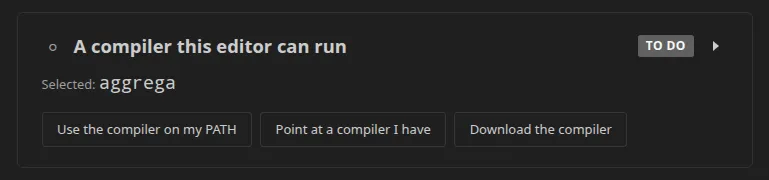
Where it finds none, it offers to download one — from the welcome page’s compiler step, whose Download the compiler sits beside Use the compiler on my PATH and Point at a compiler I have, and from the notification that the language server could not start because nothing is at the path. Downloading:
- offers the newest published release this extension works with, built for the operating system and processor of the machine your workspace is on — in a window opened on a remote machine, a container or WSL, that machine. Releases carry binaries for Linux and macOS on 64-bit x86 and 64-bit ARM, and for Windows on 64-bit x86; on any other machine the download is refused, naming it;
- proposes the folder Aggrega’s install scripts use —
~/.local/binon Linux and macOS,%LOCALAPPDATA%\Programs\aggregaon Windows — where the compiler is saved asaggrega, oraggrega.exeon Windows, and lets you change it; the version is in the question’s title; - asks you to confirm the version and the file before anything is downloaded, then shows progress you can stop;
- checks the file against the release’s
SHA256SUMS, deleting a download that does not match and naming it, makes it executable, and runs it once withaggrega version -o json. Only a file that passes all three is put in place, and only then isaggrega.server.binaryPathset to it, in your own settings.
Downloads go through the proxy your editor uses for extensions, as its http.proxy and
http.proxyStrictSSL settings configure it. Where the release list or a file cannot be read — you are
offline, GitHub is limiting requests from your address, or the request is refused — nothing is
downloaded, the setting is left as it is, and one sentence says why.
It replaces only a compiler it is entitled to replace: one in that shared folder, or one it downloaded itself, which it remembers on that machine in its own storage rather than in a setting. Asked to download over a compiler you put anywhere else, it says that it never replaces one and offers the shared folder instead.
It never upgrades on its own. For a compiler it may replace, it reads the release list when a window opens and says, once for each version, that a newer release is available; it asks nothing about a compiler you pointed it at yourself.
Aggrega: Select Compiler Version changes the version you run, and keeps it until you change it again. It lists the releases this extension works with, newest first, marking the one in use. Before anything is downloaded it warns that the compiler is the one every workspace on this machine uses, so the version changes for all of them, and that a Release whose lockfile another version wrote may need Pull run again; you confirm with Download and switch. The new version is downloaded beside the current one and checked as any download is, the language server is started on it, and only then does it replace the earlier one. Where it does not start the language server, it is deleted, the earlier one stays, and the language server is started on it again. In a window with no Aggrega workspace open there is no language server to start, so the version check stands in for it and the message says so. It replaces a compiler only where a download may; for one you put somewhere yourself, it says so and offers the shared folder instead.