

Commands
What a command does when you run it
Every command ends in something you can see. Nothing succeeds silently, because a command that says nothing looks exactly like one that never ran.
- Choosing a Release changes the two indicators and raises no notification. You can already see the result, and a notification for it would only teach you to dismiss notifications unread.
- Validate and lint report how many problems they found — including when they found none. A clean run says so, rather than leaving the Problems panel untouched and you wondering whether the command ran.
- Draft entity and inspect end with the document open in a tab. Show config ends with a panel rather than a document, because what it reports is a list of settings to read down rather than a file to keep.
- A long operation shows progress with a Cancel button. That covers everything that reaches a registry, renders or resolves a Release, walks the catalog, or runs a plugin over your input: validate, lint, build, preview build, the topology graph, pull, inspect, push, sign, deprecate and import. Drafting a document, reporting the effective configuration and maintaining the caches are none of those, so they run without one. Cache maintenance additionally cannot be interrupted at all — the compiler carries no way to stop one part-way — so it is covered by the confirmation beforehand rather than by a button that could only stop the editor waiting.
- Pressing Cancel stops the compiler, not just the editor’s waiting. Over the language server the extension sends the cancellation for the request it issued; over a subprocess it terminates the process. Cancellation of a compile takes effect at the compile’s own phase boundaries, so a heavy phase already under way finishes first — which is why the message says the operation was stopped rather than that it stopped instantly. Either way the result is reported as stopped, never as a failure.
- A cache operation that removes something asks first, and names the caches it will reach. Emptying and pruning touch this workspace’s own caches and the compiled-module and plugin-describe caches shared by every project on this machine, so those confirmations name both. Trimming touches only the shared compiled-module cache, so its confirmation names that one and says the workspace’s own caches are untouched. Afterwards a message says what was removed, and how much was left in place because another process has it open where there is any; declining says that nothing was.
- Push, sign and deprecate say what is now true for consumers — that the version you published is what others pulling it now resolve, that the signature is there to be verified, that the deprecation marker is what resolvers now see. Each names the registry it reached and whether anything actually left this machine, read off what the compiler did rather than off what was asked for, so a publication that landed nothing is never reported as one that did.
- A failure shows the compiler’s own message, with a button beside it, never a re-worded summary
in place of it. The compiler’s message usually names what to run or what to fix, and the Show
output button takes you to the full text in the Aggrega output channel. An operation that runs the
aggregabinary and is refused names the status the binary exited with and then the words it wrote when it refused, unchanged, and the output channel ends with the same sentence, line for line. An inspection refused because of the document that declares the entity offers Open document instead, because that document is what the message is about and the channel holds nothing more.
The commands
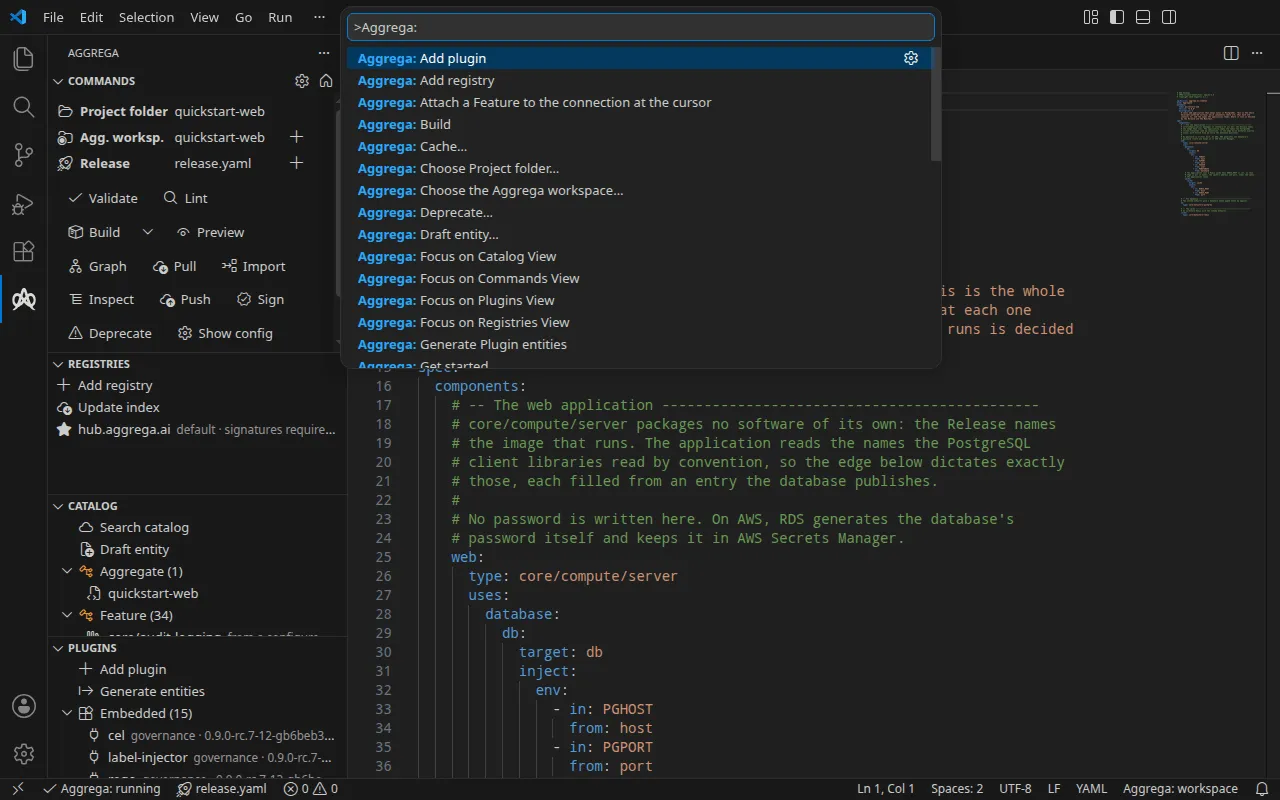
-
Aggrega: Get started — bring the welcome page back after you have turned it off, and open it. It turns
aggrega.getStarted.showback on, so turning the page off is a choice you can undo rather than a door that locks behind you. Ticking the checkbox at the page’s foot turns the same setting back on and opens nothing: the page is the one you are on, so the checkbox keeps the keyboard focus and Space ticks and unticks it in turn. The house icon in the Commands panel title bar is a different thing: it opens the page and changes no setting, so a glance at the page is never also a decision about startup. -
Aggrega: Stop opening the welcome page on startup — stop the welcome page opening on startup, by turning
aggrega.getStarted.showoff in your own settings. This stops it arriving unasked rather than putting it out of reach: Aggrega: Get started brings it back. Unticking the checkbox at the page’s foot runs this same command, so the decision can be taken from where the page is being read as well as from the palette. -
Aggrega: Open settings — open this extension’s preferences. Also the cog at the top right of the Commands panel. It opens the editor’s own settings page filtered to this extension, so there is one place a preference lives and one place it is written. Distinct from Show config, which reports what the compiler resolved for the workspace rather than what your editor is set to.
-
Aggrega: Select Release… — choose the Release the editor works on. Takes effect at once, re-checks the open files against it and has the Catalog panel read its list again; nothing restarts. Also reachable by clicking the Release indicator in the status bar. See Selecting a Release.
-
Aggrega: Set the selected Release as this workspace’s default — record the selected Release in
.aggrega/active-release, so a later session starts on it. The language server writes the file, and refuses, in its own words, where.aggregaor the marker is a link leading outside the Aggrega workspace. Local to your checkout, and it does not change the current selection. -
Aggrega: Set authoring_release in .aggrega-config.yaml… — open the configuration file to set
build.authoring_release, the committed default a team shares. It outranks the marker file. A configuration file the language server reports as a link leading outside the Aggrega workspace is not opened, and an error says why. -
Aggrega: Select Compiler Version — choose the version of the
aggregacompiler this machine runs, from the releases this extension works with, after a warning you confirm; the new version replaces the earlier one only once the language server has started on it. See Getting the compiler. -
Aggrega: Start or restart the language server — starts the language server where none is running, and where one is, terminates it and spawns a fresh one, resetting the respawn-attempt counter. It is never left out of the command palette: starting is what it does, so withholding it while nothing is running would withhold it in the one situation that needs it. Also reachable by clicking the language-server indicator in the status bar. Where no folder in the window is one Aggrega recognises, it says so rather than appearing to do nothing.
-
Aggrega: Toggle the artifact-rendering stage while inspecting — flips the
aggrega.server.buildOnInspectsetting in place, so the settings UI always agrees with it, and offers the restart that applies it — the language server reads the setting when it starts. Also reachable from the status-bar quick-action menu, which shows whether the setting is currently on. The stage adds the advisoriesaggrega buildraises while rendering, and none of the checks a build halts on. Findings arrive tagged with the layer that raised them, so the stage’s advisories group apart from validation in the Problems panel and clear independently of it. The restart that applies the change empties the Problems panel and checks the open files again, so with the stage turned off its advisories leave it, and with it turned on they return the next time the graph is drawn. -
Aggrega: Validate active file / Build / Preview build / Lint — run the corresponding compiler operation through the language server. Build, preview build and pull act on the selected Release rather than asking each time. Build compiles the selected Release with every gate on and writes the artifacts it renders into a
dist/directory in your Project folder, so they arrive beside the work you chose to open — or, where no Project folder is chosen or the one chosen is not inside your Aggrega workspace, into thedist/directory at the Aggrega workspace’s root — and the build’s closing line and its notification name the directory it wrote.aggrega buildrun in a terminal writes into thedist/directory at the Aggrega workspace’s root wherever it is run, so with a Project folder below that root the editor and the terminal write into two different directories; preview build runs the same compile and reports what it would have written, leaving the output directory untouched.On the Commands panel the Build button carries a caret beside it, named Build options, opening the options that apply to the next build — Auto pull resolves the selected Release’s dependencies into the lockfile before rendering, and it is off unless you turn it on, which is the command line’s own default for the same choice. While Build cannot run the caret stays where it is, greyed, and pointing at it gives Build’s reason; it opens nothing until Build can run. Each option carries a box beside it — empty while it is off, ticked while it is on — so you can read its standing without pressing anything, and the sentence saying what turning it on does appears while you are pointing at the row or have reached it with the arrow keys. Turning an option runs nothing and leaves the list open, so you can turn another; pressing Build — or the caret again — puts the list away. Options last for the session and are written nowhere, so closing the window discards them, and they belong to Build alone: preview build reports what a build would write while writing none of it, and resolving dependencies writes the lockfile, so it takes no options at all.
Both put the findings that carry a document position in the Problems panel, tagged with the layer that raised them — a refusal the compiler raises while rendering among them, filed on the document it names, such as the Recipe whose Workload it refused, with its short code opening the page explaining it, while the build or preview ends in the compiler’s own words on the output channel and in a notification — and write the advisories that name no position — a withdrawn pin, an unresolvable parent — to the Aggrega output channel along with the artifact list. Closing a file takes its own findings out of the Problems panel and leaves standing what a build, a preview or a graph found in it: those are about the Release rather than about the file you had open, so they stay until the compiler stops reporting them. A Build, a Preview or a graph the compiler refuses because a dependency does not resolve puts that refusal in the Problems panel too — on the document the compiler names, or on the Release where it names none — and it stays through that file’s opening and closing, until the next Build, Preview or graph of that Release is answered without it.
A build with Auto pull writes, ahead of those, what its dependency resolution did: one line for each reference it pinned, with the version it resolved to, its kind where the compiler names one and, where the compiler reports it, where this run took the reference from, in the word
aggrega pull --detailprints for it —fetched-fresh,cache-reuse,local,in-binaryorexternal— and then the summaryaggrega pullprints at a terminal,Pull complete:followed by the lockfile written, named from the workspace root, and counts of what the resolution recorded.Lint checks publishing conventions and places each finding in the Problems panel, so clicking one opens the entity it concerns. Each is tagged with the short code
aggrega lintprints for the rule that produced it, and the tag opens the page explaining that code; a rule that has no short code is tagged with its own name instead. A finding located to a file but not to a line sits at the top of that file rather than at a guessed position, and every finding is written to the Aggrega output channel as well, beneath the document it concerns, as the lineaggrega lintprints for it: its severity, the rule’s short code, the rule’s own identity and the rule’s own wording, unchanged. Where your configuration gives its Releases catalog directories of their own underworkspace.releases, Lint checks the catalog once for each Release, over the directories that Release reads — Releases reading the same directories are checked together — and reports each check on its own: the output channel opens it with the lineaggrega lintopens it with, naming its Releases and the directories read, and lists its findings beneath; the closing notification states what each check found and over how many entities, for its own Releases; and each Problems entry ends by naming the Releases whose check found it, so a finding in a directory two checks read is listed once for each.All four report how many findings they produced, including when the answer is none, so a clean run is distinguishable from a command that did not run; all four show progress with a Cancel button while they work.
-
Aggrega: Pull — run the
aggregabinary against the selected Release and stream its output to the Aggrega output channel. It resolves the catalog and source dependencies the Release declares into the cache and writes the per-Release lockfile, recording in that lockfile the external inputs the Release’s render consumes, so a later build serves them from the local store. It reaches a registry, so it shows progress with a Cancel button, and it ends in a message saying what it did. A Build, a Preview or a graph you open that the compiler refuses because the Release has no lockfile ends in one notification,Aggrega: <release> has no lockfile.followed by the compiler’s own sentence, with a Pull button: pressing it runs this command, with the binary the extension is configured with, for the Release the compiler named — or for the selected Release where the compiler named none — and the output channel carries the compiler’s sentence in the line the operation ends with. A redraw you did not ask for, such as an open graph redrawn after a save, raises the same notice at most as often as the twoaggrega.notificationssettings allow. Whatever writes the selected Release’s lockfile — this command, a build with Auto pull, oraggrega pulltyped in a terminal — the open files are checked again against it, and a warning that the lockfile has drifted leaves the Problems panel on its own once the write has resolved it: a graph open on that Release is redrawn, which checks the lockfile again, and where no graph shows that Release — none is open, or the one open is still showing a Release you selected before — the extension asks for its graph once without drawing anything. Only the selected Release’s lockfile is followed this way, and only inside the folders the window has open; a warning on another Release’s lockfile stays until you show that Release’s graph. -
Aggrega: Draft entity… — choose a kind from the ones the compiler answers for, then ask the language server for a starter document and open it in a new unsaved tab. The kinds are asked for rather than kept in the extension, so the choice follows the compiler you are running: a kind it gains is offered without this extension being changed. You read the name your document will carry, and the draft is asked for by the compiler’s own token for that kind — and the prompt that then asks for a name says which kind it is naming, in the same words you just read. Nothing is written to disk: the draft is yours to edit, save or discard. An invocation naming a kind the compiler does not recognise — a keybinding or a recorded workflow can carry one — comes back with the compiler’s own message naming the kinds it does. It is also the second row of the Catalog panel, Draft entity.
-
Aggrega: Inspect… — choose an entity the workspace can see and see what it resolves to, opened as a new tab. An inspection is addressed by name, so an entity resolved from a configured catalog directory is offered here as well as one the workspace declares. It resolves in the selected Release’s terms, and the entities on offer are the ones the Catalog panel lists for that Release: a name several variants declare, one per Release, resolves to the selected Release’s, and a name that Release does not resolve is reported as not resolved, with the compiler’s reason, which names that Release’s entry under
workspace.releases. With no Release selected it resolves through the workspace’s own catalog directories. Where a document in the workspace declares the entity and the catalog resolved nothing from it — the document breaks its kind’s schema, say, or sits outside every catalog directory — the notification says the entity cannot be inspected because of the document that declares it, followed by the compiler’s own sentence saying what is wrong, and its Open document button opens that document; the Aggrega output channel carries the same sentence. An inspection refused for any other reason ends as any failed operation does. Reading which entities the workspace holds shows progress and can be stopped, and so does the resolution that follows. Pressed on the Commands panel, the entities are offered as a menu beside the button; run from here, they are offered as a list you pick from. The inspection a Catalog panel row offers is this one, and it ends the same way. -
Aggrega: Import into Aggrega — see Import into Aggrega.
-
Aggrega: Cache… — choose a cache operation, then run it through the language server. Pressed on the Commands panel, the four are offered as a menu beside the button; run from here, they are offered as a list you pick from. Nothing is spawned, and each answer comes back as a structured result the panel reports: status lists every cache, what it holds and how far each one is shared, and removes nothing; prune removes the entries no lockfile references and names what it kept, together with anything it had no basis to reclaim and the operation that would; evict asks for a size cap first — a byte quantity such as
5GiBor512MiB, or a byte count, read by the same parser the command line uses — and trims the shared compiled-module cache down to it; clear empties every cache. The three that remove something ask you to confirm first, and each confirmation names the caches that operation actually reaches: emptying reaches this workspace’s own entity, source-artifact and external-input caches and the compiled-module, plugin-describe, docs-bundle and cli-plugin caches every project on this machine shares; pruning reaches the same workspace caches and the shared compiled-module, plugin-describe and cli-plugin caches; and trimming reaches only the shared compiled-module cache. Every size these operations report is written in the same vocabulary that cap is read in, so a figure you read off a cache report is one you can type straight into the cap prompt. A cap the compiler cannot read comes back with the compiler’s own message naming what a size cap looks like. Cleared and trimmed caches repopulate on the next build that needs them. Windows refuses to remove a file another process has open, and a prune, a trim or an emptying then leaves it in place and goes on with the rest rather than failing: the Aggrega output channel names each entry a prune or a trim left, with its class, how far it is shared and its size, and gives, under each cache an emptying reached, how many files it left there and their size; the message the operation ends in says how many were left in place, asks you to run the operation again once that process has finished, and points you at the channel for which. Where nothing was left in place, which is every run on a platform that removes an open file, neither says anything about it. -
Aggrega: Push… / Sign… / Deprecate… — the operations that change what other people resolve. Push asks which of the entities the Catalog panel lists to publish — a menu beside the button on the Commands panel, a list you pick from when run from here — then bundles and publishes it to a configured registry. Sign and deprecate ask for a reference to an artifact already published, because both amend published bytes rather than the workspace: sign attaches a signature, deprecate attaches a signed deprecation marker and asks for the severity —
warning,errororretracted— and the reason it records. All three go to the language server, all three show progress with a Cancel button that ends the publication rather than only ending the wait, and each ends by naming what the compiler actually did: the reference and version the entity resolved to and the digest that version now points at, the digest each signature commits to, or the marker’s own digest. A publication that found the same bytes already published says so rather than reporting as one that landed something. Their findings and the full account go to the Aggrega output channel. -
Aggrega: Show config — open a panel listing every setting the configuration schema declares, generated from that schema so the settings, their names, their defaults and what they accept have exactly one home and a new one appears with no change here. The panel opens as a table with a row per setting, beneath a heading row for each group of the configuration —
workspace,build,plugins,mcp,signingand the rest — with the settings at the top level first. Each row carries the setting as you would write it in the file, its name in words, its value, what the setting accepts, and where the value came from. The name is derived from the key: an acronym is spelled in capitals, and where two settings’ names would read alike, the group each sits in is added, so no two rows share a name. The one value column says what applies now: a value set in a file or the environment, or one that is not the schema’s declared default, is marked ●, and pointing at the mark says why and what the declared default is — which is how you find the settings you have changed; a setting with no value in force reads none, and an empty list reads[].A list’s additive companion —
workspace.catalog_dirs_appendbesideworkspace.catalog_dirs, say — has no row of its own: it is named under its list’s path, and the list’s row shows the one value and the one source the compiler’s report gives the two together, which does not say which entries the companion added. A setting that belongs to the machine rather than to one project — a registry and its signature trust policy, the compiled-module cache, the command-contributing plugin list — is marked Global on its row. The setting’s own description sits behind a small circle marked i in the last column, headed Description, which keeps the longest thing a setting carries off the row: press it or hover it to read the description, any code it names drawn as code. A setting path breaks only after_or., and a value or a file path only after/,.or_or at a space, so nothing is cut in the middle of a word.The table is still wider than a docked panel and scrolls sideways there, and the setting’s own key stays in view while it does, so the value you scroll to always has the setting it belongs to beside it; the caption above the table wraps to the panel’s width. Each labelled column heading has a resize corner at its right edge: drag it to widen or narrow that column. Widening a column does not widen the table, so the column follows the pointer while the other columns have room to give and stops once they are all at their narrowest; where the panel is too narrow for the table even at its narrowest — docked in the side bar, say — every column is already there and the corners move nothing. A column stops narrowing at the widest run it cannot wrap — its heading, a word of a setting’s name, or the part of a path or a value between two places it may break — and the setting column keeps a minimum width of its own; everything else in a narrowed column wraps inside it rather than running into the next. The panel runs no script, and three limits follow from that: a width you set lasts only until the panel is drawn again, so switching to the other shape, pressing Show config again or reopening the panel draws every column afresh at the width the table gives it; a column cannot be fitted to its content on request, by a double-click or otherwise; and the corner is reached with the pointer, not the keyboard.
A control above the table switches to a second shape that gives each setting a block of its own, with its description and its reach shown in place and the rule for the Global marker stated at its head, and the shape you last used is the one the panel reopens in. Each setting shows the value in force and, where the compiler can say, which file that value came from. The compiler’s report attributes each setting, a list’s companion on its list’s own row; where it names a setting nowhere — a report that could not be read, say — the panel says so rather than implying a source it does not have: such a setting is shown with its declared default, marked as the declaration rather than as a reading, and no source, and the box at the head of the panel names each one.
Pressing Show config with the panel open brings it to the front and reads the configuration again. Where the configuration cannot be read, the press closes the panel, whether it was open or not, and one notification says why; where the reason is that the language server is not running, the notification offers Start, which runs Aggrega: Start or restart the language server. The panel reports; it does not write. Changing a setting is an edit to the configuration file.
-
Aggrega: Show topology graph — open the topology graph for the selected Release. Drawing it compiles that Release to its topology, so it shows progress with a Cancel button.
-
Aggrega: Attach a Feature to the connection at the cursor — attach a Feature to a connection from its entry in your document. It is in the editor’s context menu and in the command palette, and only in a document the language server reports as one of the workspace’s Aggregates or Releases. It asks the language server which connection’s entry the cursor is inside, in the selected Release’s terms as the other cursor features are: the entry a component draws a connection with, under the connection’s alias, or the entry a Release writes for one. On such an entry it opens the topology graph on the selected Release with that connection selected, and you attach from its May attach section as after clicking the connection’s edge, except that the entry is written in the document you ran the command in. Anywhere else it opens nothing and says why: the cursor is not inside a connection’s entry, a Feature drew the connection, or the Release’s entry is for a connection its compiled graph does not carry. With no Release selected it offers to select one, as Aggrega: Show topology graph does, and a refusal from the language server is shown in its own words. Unsaved changes are sent to the language server first, so the cursor is read against the text you see.
-
Aggrega: Search published catalog — open the filter list, narrow the search by free text, kind, labels, capability, plugin socket or a result cap, then run it and copy a matched reference. Each facet is editable in any order and returns to the list, so the whole filter is readable before it runs. For as long as the extension runs in the window, the list opens with the filter the last search left, and Reset search filter, just above Search, clears every facet without searching. A search that matched nothing names the filter it ran and, where a configured registry has no index yet, the registries it searched, then the ones it did not and how to build their index; that is a different answer from an index that could not be read at all — the second reports the compiler’s own message and the full text goes to the Aggrega output channel, together with the freshness line naming each registry searched and when its index was last updated. It is also the first row of the Catalog panel, Search catalog.
-
Aggrega: Refresh plugins — reload the Plugins panel.
-
Aggrega: Refresh registries — re-read the configured registries. This contacts no registry, so it is cheap to repeat.
-
Aggrega: Refresh workspace catalog — re-ask the language server which entities the workspace can see. This reads the workspace the server already has open and contacts no registry, so it is cheap to repeat. The panel asks again on its own when the language server becomes answerable, when the selected Release changes, after a document is created, changed or deleted on disk, and after the editor closes one, so this is for what none of those covers, such as a change still in an unsaved buffer. It sits in the Catalog panel’s title bar, which is the one thing there: it re-reads that list rather than acting on what the list holds, so it belongs to the panel rather than to the workspace.