



एक MCP क्लाइंट कॉन्फ़िगरेशन इम्पोर्ट करें
यह वॉकथ्रू उन Model Context Protocol सर्वरों को इम्पोर्ट करता है जिनके साथ एक कोडिंग असिस्टेंट कॉन्फ़िगर किया गया है — दो जिन्हें वह कमांड लाइन से शुरू करता है और एक जिसे कोई और चलाता है — और सर्वरों को Kubernetes के लिए बिल्ड करता है, ताकि क्लस्टर में चलने वाला एजेंट उन्हीं टूल तक पहुँच सके। इम्पोर्ट हर वह फ़ाइल ड्राफ़्ट करता है जिसे बिल्ड पढ़ता है: हर सर्वर की कमांड लाइन या पता, वह रियलाइज़ेशन जो उसे चलाता है, और यह कि GitHub सर्वर का टोकन कहाँ से आता है। नीचे की हर फ़ाइल और आउटपुट का हर ब्लॉक एक वास्तविक रन से आता है; कॉन्फ़िगरेशन और वॉकथ्रू का हर चरण import-mcp उदाहरण में है, जहाँ एक जाँच स्क्रिप्ट इम्पोर्ट को फिर से चलाती है, वह जो लिखता है, जो प्रिंट करता है और इस पेज में उद्धृत ब्लॉकों की तुलना वहाँ रखी फ़ाइलों से करती है, और इम्पोर्ट ने जो लिखा उसे वैलिडेट और बिल्ड करती है।
उदाहरण ड्राफ़्ट करें
आप यह इम्पोर्ट इस पेज के कमांडों से चला सकते हैं, या इसे अपने AI असिस्टेंट से चलवा सकते हैं।
उदाहरण को उसी के नाम वाले एक नए फ़ोल्डर में लिखें:
aggrega draft --example import-mcpफिर यह आगे चलाने के लिए कमांड प्रिंट करता है। पहला कमांड नए फ़ोल्डर में ले जाता है; उसके बाद वाला, नीचे दिया गया, उसके source फ़ोल्डर में ले जाता है, जिसमें वह है जिसे यह पेज इम्पोर्ट करता है और जहाँ इम्पोर्ट चलता है:
cd import-mcp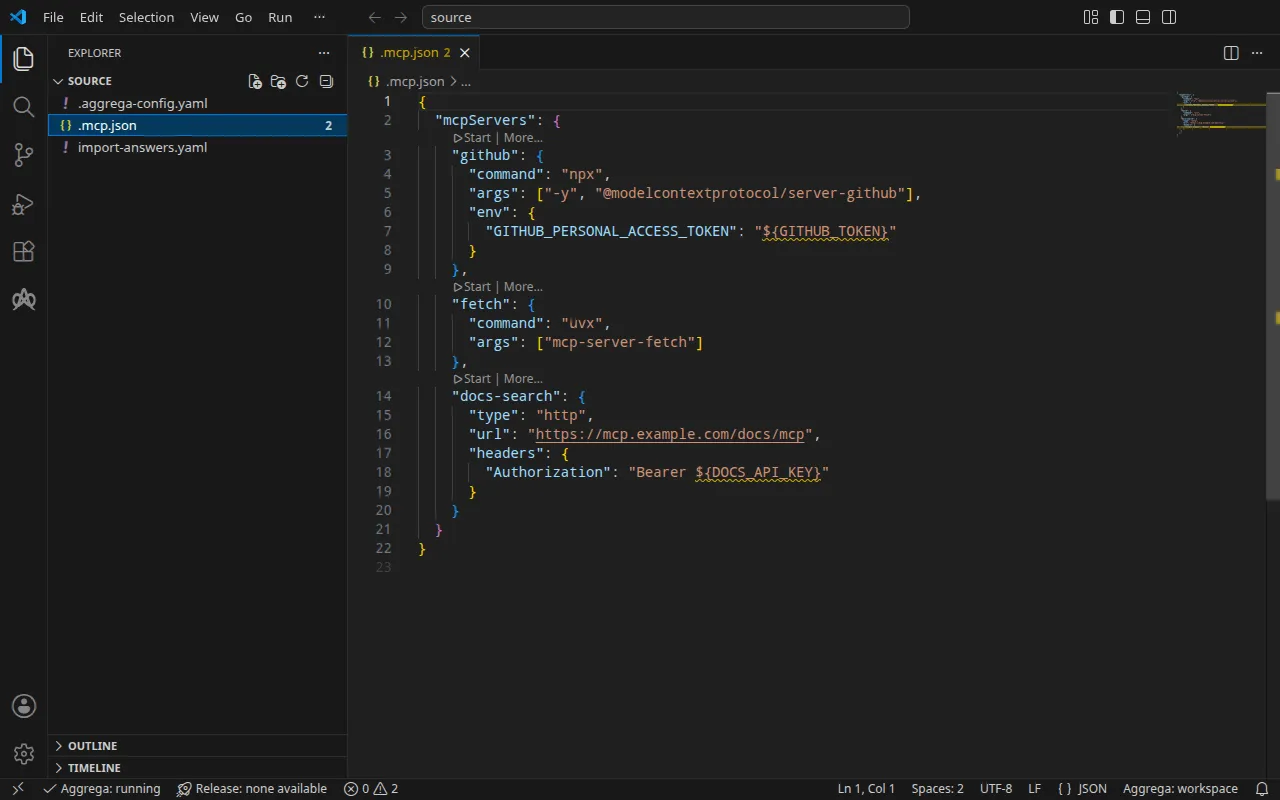
कॉन्फ़िगरेशन
Claude Code की .mcp.json, किसी प्रोजेक्ट के रूट में:
{ "mcpServers": { "github": { "command": "npx", "args": ["-y", "@modelcontextprotocol/server-github"], "env": { "GITHUB_PERSONAL_ACCESS_TOKEN": "${GITHUB_TOKEN}" } }, "fetch": { "command": "uvx", "args": ["mcp-server-fetch"] }, "docs-search": { "type": "http", "url": "https://mcp.example.com/docs/mcp", "headers": { "Authorization": "Bearer ${DOCS_API_KEY}" } } }}इम्पोर्ट Claude Desktop की claude_desktop_config.json, Cursor की .cursor/mcp.json, Visual Studio Code की .vscode/mcp.json और किसी MCP रजिस्ट्री की server.json को भी इसी तरह पढ़ता है। कॉन्फ़िगरेशन के बगल में, एक .aggrega-config.yaml फ़ोल्डर को वर्कस्पेस बनाता है:
# The workspace key marks this directory as the workspace root, so an import run# here writes its drafts beside .mcp.json.workspace: {}# The registry the importer is fetched from the first time an import needs it.default_registry: hub.aggrega.ai--target कैटलॉग के Recipes से एक Manifest ड्राफ़्ट करता है। वर्कस्पेस किसी कैटलॉग फ़ोल्डर का नाम नहीं देता, इसलिए इम्पोर्ट स्टैंडर्ड लाइब्रेरी का कैटलॉग उसी रजिस्ट्री से पढ़ता है जिससे वह अपना इम्पोर्टर लाता है: प्रकाशित कैटलॉग का एक हस्ताक्षरित स्नैपशॉट, जिसे पहला इम्पोर्ट लाता है, सत्यापित करता है और वर्कस्पेस के कंटेंट कैश में रखता है, और जिसका नाम उसके डाइजेस्ट से उस रिकॉर्ड में दिया जाता है जिसे इम्पोर्ट अपने ड्राफ़्ट के बगल में लिखता है। जो वर्कस्पेस अपने कैटलॉग फ़ोल्डरों के नाम देता है — AGGREGA_CATALOG_DIRS में, या workspace.catalog_dirs के अंतर्गत — वह इसके बजाय उन्हीं के विरुद्ध इम्पोर्ट करता है।
उत्तर फ़ाइल
Kubernetes पर, GitHub सर्वर अपना टोकन क्लस्टर में मौजूद एक Secret से पढ़ता है, और कोई भी MCP कॉन्फ़िगरेशन उस Secret का नाम नहीं देता: कॉन्फ़िगरेशन टोकन को आपके शेल के GITHUB_TOKEN से पढ़ता है। इसलिए इम्पोर्ट Secret का नाम पूछता है। उदाहरण उत्तर को .mcp.json के बगल में import-answers.yaml में रखता है, जहाँ इम्पोर्ट उसे ढूँढता है:
# Values the import could not draft from the source, keyed by the drafted file and the key path inside# it. Write each one beside its key; an import of the same source, and a sync, read them from here and# ask nothing. A secret is never written here: its key asks where the secret comes from — a variable# name, ${NAME}, or the name of a Kubernetes Secret.release.yaml: # The origin of the secret value, written by the operator in the Release. Read exactly as # values.origin is. Write it here or in values.origin, never in both. A secret: name where it comes # from, never the value. spec.components.github.features.server_env.infra.origin: "github-mcp-token"इम्पोर्ट ने यह फ़ाइल स्वयं लिखी, पहली बार जब उसे बिना उत्तर के चलाया गया: पूछने के लिए कोई टर्मिनल न होने पर, उसने बाकी सब कुछ ड्राफ़्ट किया, Secret का नाम खाली छोड़ा, फ़ाइल में कुंजी सूचीबद्ध की, और इस संदेश के साथ रुक गया
1 value the drafts leave empty is still owed, listed in the answers file <workspace>/import-answers.yaml: write it beside its key there, then run the import againटर्मिनल पर वह इसके बजाय प्रश्न पूछता है, और उत्तर को अगले इम्पोर्ट के लिए फ़ाइल में लिखता है। उत्तर Secret का नाम है, github-mcp-token, कभी टोकन नहीं। इम्पोर्ट उत्तर फ़ाइल फ़ाइल और प्रश्नों का पूरा वर्णन करती है।
aggrega import उन सभी फ़्लैग की सूची देता है जिन्हें कमांड लेता है, और उनमें --answers भी है, जो कहीं और रखी गई उत्तर फ़ाइल का नाम देता है।
source में जाएँ:
cd sourceइम्पोर्ट चलाएं
aggrega import .mcp.json --target helmस्टैंडर्ड आउटपुट पर यह सूची देता है कि इसने क्या लिखा:
wrote aggregate.yamlwrote release.yamlwrote manifest.yamlwrote .aggrega-import.jsonस्टैंडर्ड एरर पर, जहाँ <workspace> उस फ़ोल्डर के स्थान पर है जिसमें आपने इसे चलाया:
[… omitted: a warning that the importer runs unverified, printed where its module is read from beside its Plugin entity in a catalog folder rather than fetched]read as the mcp format, with drafted paths relative to <workspace>warn: the value of infra.stdio_command.0 of node github is carried as written in the Release the draft writes: the field belongs to an MCP server's configuration, which can carry a key, and setting empty_credentials to marked or all writes it emptywarn: the value of infra.stdio_command.1 of node github is carried as written in the Release the draft writes: the field belongs to an MCP server's configuration, which can carry a key, and setting empty_credentials to marked or all writes it emptywarn: the value of infra.stdio_command.2 of node github is carried as written in the Release the draft writes: the field belongs to an MCP server's configuration, which can carry a key, and setting empty_credentials to marked or all writes it emptywarn: the value of infra.stdio_command.0 of node fetch is carried as written in the Release the draft writes: the field belongs to an MCP server's configuration, which can carry a key, and setting empty_credentials to marked or all writes it emptywarn: the value of infra.stdio_command.1 of node fetch is carried as written in the Release the draft writes: the field belongs to an MCP server's configuration, which can carry a key, and setting empty_credentials to marked or all writes it emptywarn: the value of headers.Authorization of node docs-search is carried as written in the Release the draft writes: the field belongs to an MCP server's configuration, which can carry a key, and setting empty_credentials to marked or all writes it emptywarn: the value of infra.endpoint of node docs-search is carried as written in the Release the draft writes: the field belongs to an MCP server's configuration, which can carry a key, and setting empty_credentials to marked or all writes it emptyPull complete: <workspace>/release.lock (entities=7, source_artifacts=0, external_inputs=0)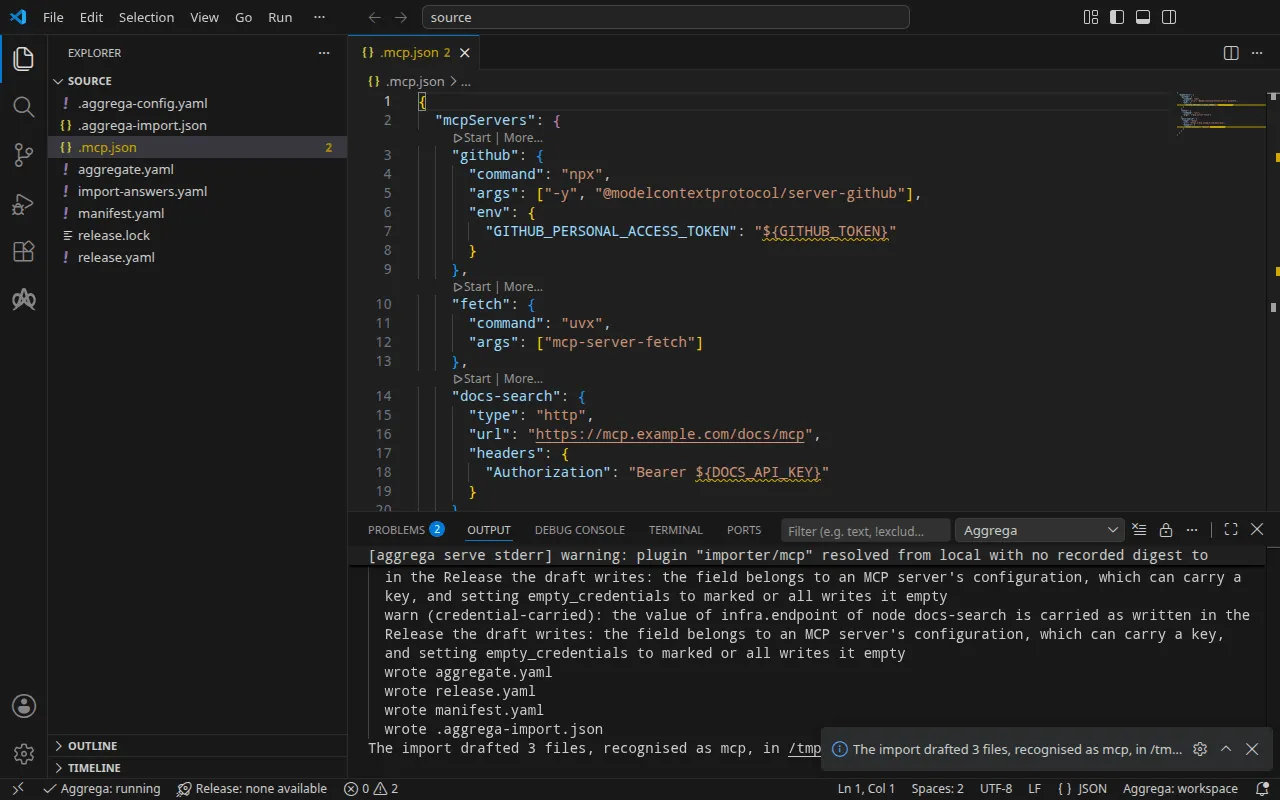
हर सर्वर स्टैंडर्ड लाइब्रेरी के MCP टूल core/ai-tool/mcp का एक इंस्टेंस है, इसलिए इम्पोर्ट किसी उम्मीदवार को नहीं तौलता और कोई mapped पंक्ति प्रिंट नहीं करता।
warnपंक्तियाँ उन मानों के नाम देती हैं जो किसी सर्वर के कॉन्फ़िगरेशन में होते हैं। कोई भी MCP क्लाइंट इनमें से किसी को क्रेडेंशियल के रूप में चिह्नित नहीं करता, और इनमें से कोई भी एक क्रेडेंशियल वहन कर सकता है — कमांड-लाइन आर्ग्युमेंट में एक कुंजी, किसी पते में एक टोकन — इसलिए इम्पोर्ट हर उस कमांड लाइन आइटम, हर हेडर और हर पते का, जिसे उसने वहन किया, नाम उसके सर्वर और उसके स्थान से देता है, कभी उसके मान से नहीं। ड्राफ़्ट साझा करने से पहले इन्हें पढ़ें।envमान${GITHUB_TOKEN}एक वेरिएबल संदर्भ है और कुछ नहीं, इसलिए उसका अपना कोई मान नहीं होता और कोई चेतावनी उसका नाम नहीं देती।Pull completeपंक्ति इम्पोर्ट द्वारा वह लाना है जिस पर ड्राफ़्ट किया गया Release निर्भर है, जैसेaggrega pullकरता है,release.lockमें, ताकि ड्राफ़्ट तुरंत वैलिडेट और बिल्ड हों।--offlineके अंतर्गत इम्पोर्ट कुछ भी पुल नहीं करता और चलाने के लिएaggrega pullका नाम देता है।
यह क्या लिखता है
Aggregate, Release और Manifest का नाम imported/mcp रखा जाता है, फ़ाइल, .mcp.json, के नाम पर, क्योंकि किसी क्लाइंट के कॉन्फ़िगरेशन का अपना कोई नाम नहीं होता — किसी रजिस्ट्री की server.json का नाम उसके name के आधार पर रखा जाता है — उस नेमस्पेस के अंतर्गत जिसे इम्पोर्टर की target_namespace सेटिंग तय करती है, जो imported है जब तक आप कोई और सेट न करें (सेटिंग्स)।
aggregate.yaml — प्रति सर्वर एक इंस्टेंस, और अभी तक ऐसा कुछ नहीं जो उनका उपयोग करता हो:
apiVersion: aggrega.ai/v1beta1kind: Aggregatemetadata: name: imported/mcp version: 0.1.0 description: Draft Aggregate imported from a source in the mcp format.spec: components: github: type: core/ai-tool/mcp fetch: type: core/ai-tool/mcp docs-search: type: core/ai-tool/mcprelease.yaml — हर सर्वर कैसे चलाया जाता है या उस तक कैसे पहुँचा जाता है, जैसा कॉन्फ़िगरेशन बताता है, और वह Secret जिससे GitHub सर्वर का टोकन पढ़ा जाता है:
apiVersion: aggrega.ai/v1beta1kind: Releasemetadata: name: imported/mcp # environment is a drafted default, since no source names the environment this Release deploys to; change it to name the one it deploys to. environment: development version: 0.1.0 description: Draft Release imported from a source in the mcp format.spec: aggregate: imported/mcp manifest: imported/mcp components: github: infra: stdio_command: - "npx" - "-y" - "@modelcontextprotocol/server-github" stdio_runtime: npm features: server_env: type: core/referenced-secret infra: # Left for the Release, since the source cannot supply it: the name of a Kubernetes Secret already in the namespace holding the environment github is started with, one data key per variable, each named as the variable it holds: GITHUB_PERSONAL_ACCESS_TOKEN. origin: "github-mcp-token" fetch: infra: stdio_command: - "uvx" - "mcp-server-fetch" stdio_runtime: pypi # The headers the source sends this server, which no infrastructure key of core/ai-tool/mcp takes, since a remote server's credential is held by each consumer, on its connection to the tool: # - Authorization: "Bearer ${DOCS_API_KEY}" docs-search: infra: endpoint: "https://mcp.example.com/docs/mcp"- एनवायरनमेंट,
development, एक डिफ़ॉल्ट है जिसे इम्पोर्ट इसलिए लिखता है क्योंकि कोई कॉन्फ़िगरेशन किसी एनवायरनमेंट का नाम नहीं देता; जहाँ Release कहीं और डिप्लॉय होता है, वहाँ इसे बदलें। stdio_runtimeहर कमांड से पढ़ा जाता है:npxएक npm पैकेज चलाता है,uvxएक PyPI पैकेज।- GitHub टोकन। सर्वर का एनवायरनमेंट उसका
server_envस्लॉट बन जाता है। Kubernetes पर,core/referenced-secret-setका रियलाइज़ेशन,helm/k8s-secret-set, उसे दिए गए मानों को एक ऐसे Secret में लिखता है जिसे बिल्ड रेंडर करता है, जिससे टोकन एक फ़ाइल में चला जाता। इसलिए--target helmके लिए इम्पोर्ट इसके बजायcore/referenced-secretअटैच करता है, जो क्लस्टर में पहले से मौजूद एक Secret का नाम देता है — उत्तर,github-mcp-token— प्रति वेरिएबल एक डेटा कुंजी के साथ,GITHUB_PERSONAL_ACCESS_TOKEN। ब्रिज उस Secret की हर डेटा कुंजी को उसी नाम के वेरिएबल के रूप में इम्पोर्ट करता है, इसलिए सर्वर अपना टोकन वैसे ही पढ़ता है जैसे आपकी मशीन पर पढ़ता था, और कोई भी रेंडर की गई फ़ाइल उसे वहन नहीं करती। Authorizationहेडर एक टिप्पणी बना रहता है। किसी रिमोट सर्वर का क्रेडेंशियल वही रखता है जो उसे कॉल करता है, टूल से उस कॉलर के अपने कनेक्शन पर, और इस वर्कस्पेस में अभी कोई कॉलर नहीं है। जब आप किसी एजेंट कोdocs-searchसे वायर करते हैं, तो हेडर उसी कनेक्शन पर जाता है।
manifest.yaml — प्रति सर्वर एक रियलाइज़ेशन, उसके नाम से, और Secret का रियलाइज़ेशन:
apiVersion: aggrega.ai/v1beta1kind: Manifestmetadata: name: imported/mcp version: 0.1.0spec: mappings: components: type: {} name: github: helm/mcp-stdio-bridge fetch: helm/mcp-stdio-bridge docs-search: helm/mcp-remote features: type: core/referenced-secret: helm/k8s-existing-secretतीन Kubernetes Recipes core/ai-tool/mcp को रियलाइज़ करते हैं — एक इमेज के रूप में प्रकाशित सर्वर के लिए, एक ब्रिज के पीछे चलाए जाने वाले पैकेज के लिए, एक ऐसे सर्वर के लिए जिसे कोई और चलाता है — और कौन-सा उपयुक्त है यह हर सर्वर का गुण है, जिसे कॉन्फ़िगरेशन बताता है। इसलिए इम्पोर्ट हर इंस्टेंस को उसके नाम से मैप करता है: github और fetch, जो कमांड लाइन से शुरू होते हैं, stdio ब्रिज, helm/mcp-stdio-bridge, के पीछे चलते हैं; docs-search, जिसे कोई और चलाता है, helm/mcp-remote से मैप होता है, जो कुछ नहीं चलाता और पता प्रकाशित करता है। टोकन का Secret helm/k8s-existing-secret से मैप होता है, जो एक Secret लिखने के बजाय उसका संदर्भ देता है।
release.lock उन कैटलॉग एंटिटी को, डाइजेस्ट के साथ, रिकॉर्ड करता है जिन पर Release रिज़ॉल्व हुआ, और .aggrega-import.json इस बात का रिकॉर्ड है कि इम्पोर्ट ने क्या लिखा, जिसे बाद में कोई aggrega import --sync पढ़ता है।
Docker Compose पर
सर्वर Docker Compose पर भी चलते हैं। aggrega import .mcp.json --target compose github और fetch को compose/mcp-stdio-bridge से और docs-search को compose/mcp-remote से मैप करता है, और GitHub सर्वर के एनवायरनमेंट को वैसे ही रखता है जैसे कॉन्फ़िगरेशन उसे लिखता है: एक core/referenced-secret-set प्रविष्टि जिसका मान वेरिएबल संदर्भ ${GITHUB_TOKEN} है, जिसे compose/dotenv-secret-set रियलाइज़ करता है, जो उसे सेवा के एनवायरनमेंट में ज्यों-का-त्यों लिखता है, ताकि स्टैक शुरू होने पर Docker Compose उसे आपके शेल से भरे। वह इम्पोर्ट कुछ नहीं पूछता, और Secret का नाम उत्तर फ़ाइल में बिना उसका उपयोग किए रखता है।
वैलिडेट और बिल्ड करें
aggrega validate --release release.yamlaggrega build --release release.yaml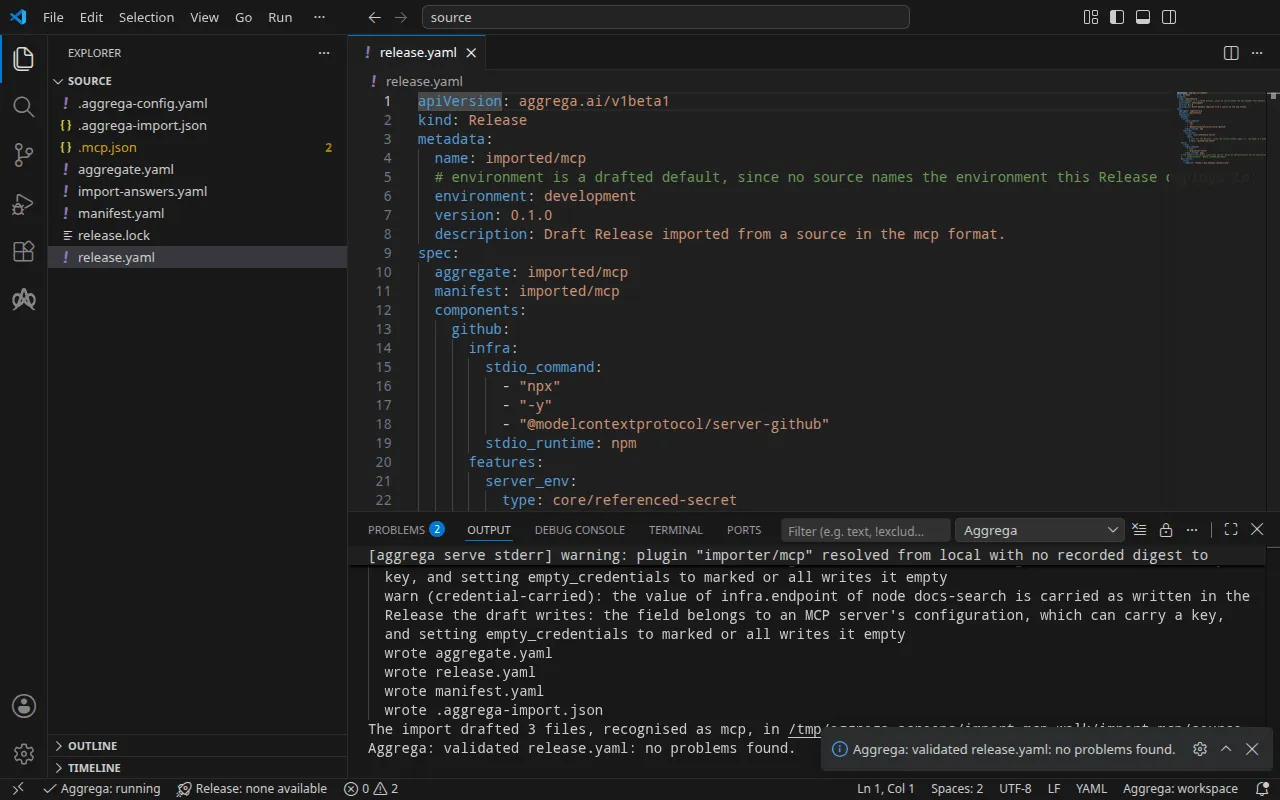
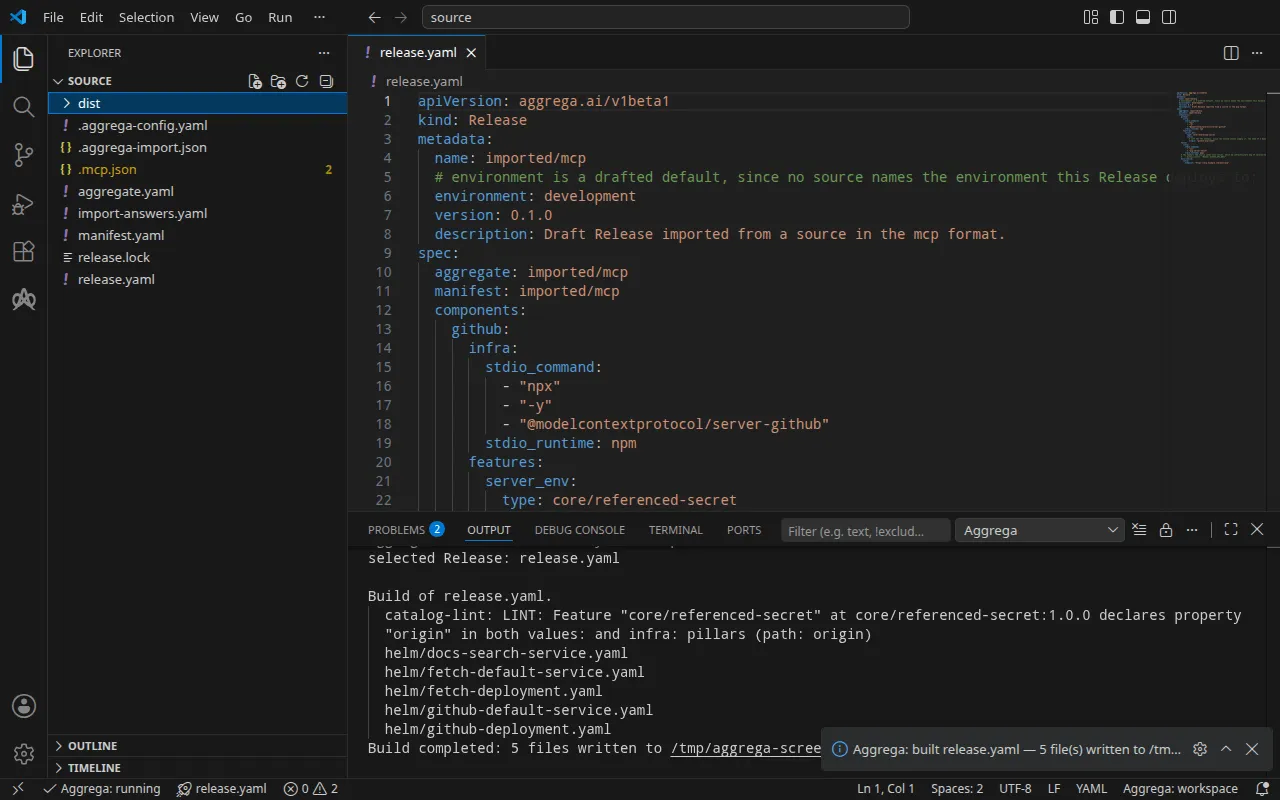
वैलिडेशन प्रिंट करता है:
notice: LINT: Feature "core/referenced-secret" at core/referenced-secret:1.0.0 declares property "origin" in both values: and infra: pillars (path: origin)release dependency validation passed: release.yaml (schema-pillar + dependency pillars)और बिल्ड, जहाँ <workspace> उस फ़ोल्डर के स्थान पर है जिसमें आपने इसे चलाया:
notice: LINT: Feature "core/referenced-secret" at core/referenced-secret:1.0.0 declares property "origin" in both values: and infra: pillars (path: origin)[… omitted: a total build time, which differs per run]Build completed: 5 files written to <workspace>/distnotice पंक्ति सलाहकारी है: Feature अपना origin Aggregate के values से या Release के infra से स्वीकार करता है, और नोटिस बताता है कि एक लीफ़ दोनों में घोषित है। यह कोई निर्णय नहीं बदलती।
बिल्ड dist/helm/ के अंतर्गत, ब्रिज के पीछे चलने वाले दोनों सर्वरों में से हर एक के लिए एक Deployment और एक Service, और docs-search के लिए एक Service लिखता है। GitHub सर्वर का कंटेनर, dist/helm/github-deployment.yaml में, सर्वर की कमांड लाइन के साथ ब्रिज चलाता है, और अपना एनवायरनमेंट Secret से लेता है:
containers: - name: main image: ghcr.io/supercorp-ai/supergateway:4.1.0@sha256:1938c43538a5308bce07d58028e9de00b7acfecb40b39b059b2f3931800ad910 args: - --stdio - '''npx'' ''-y'' ''@modelcontextprotocol/server-github''' - --outputTransport - streamableHttp - --stateful - --port - "8080" - --streamableHttpPath - /mcp - --healthEndpoint - /healthz ports: - name: http containerPort: 8080 env: - name: MCP_TOOL_SIDE_EFFECTS value: mutating - name: MCP_TOOL_TIMEOUT_SECONDS value: "30" - name: MCP_TOOL_PORT value: "8080" envFrom: - secretRef: name: github-mcp-token [… omitted: the container's resources and its readiness probe]dist/helm/docs-search-service.yaml कुछ नहीं चलाता: यह उस सर्वर को, जिसे कोई और चलाता है, क्लस्टर के भीतर एक नाम देता है।
apiVersion: v1kind: Servicemetadata: name: docs-search [… omitted: the labels and annotations the build writes on every resource]spec: type: ExternalName externalName: mcp.example.com ports: - port: 443AI असिस्टेंट के साथ
Aggrega के टूल के साथ सेट अप किया गया AI असिस्टेंट भी यही कर सकता है: यह प्रॉम्प्ट उसमें पेस्ट करें।
केवल Aggrega टूल का उपयोग करें, और स्वयं कोई फ़ोल्डर न बनाएं। यदि Workspace फ़ोल्डर में अभी कोई `import-mcp` फ़ोल्डर नहीं है, तो `draft` टूल को एक बार कॉल करें, `example` को `import-mcp` पर सेट करके और बिना `dir` के: यह उदाहरण को एक नए `import-mcp` फ़ोल्डर में लिखता है, जिसका `source` फ़ोल्डर वह रखता है जिसे यह पेज इम्पोर्ट करता है। फिर `import` टूल को कॉल करें, `workspace_root` को `import-mcp/source` पर, `source` को `.mcp.json` पर और `target` को `helm` पर सेट करके: यह जिन उत्तरों की उसे ज़रूरत है उन्हें `.mcp.json` के बगल में `import-answers.yaml` से पढ़ता है, अपने ड्राफ़्ट `import-mcp/source` में लिखता है और उनकी ज़रूरत की चीज़ें पुल करता है। फिर `validate` टूल को कॉल करें, `workspace_root` को `import-mcp/source` पर और `release` को `release.yaml` पर सेट करके, और `build` टूल को, `workspace_root` को `import-mcp/source` पर, `release` को `release.yaml` पर और `write` को true पर सेट करके। मुझे बताएं कि बिल्ड ने कौन-सी फ़ाइलें लिखीं; वे `import-mcp/source/dist/` के अंतर्गत हैं।इसे VS Code में खोलें
Visual Studio Code के लिए Aggrega एक्सटेंशन इंस्टॉल होने पर, VS Code में import-mcp/source फ़ोल्डर खोलें, जहाँ इम्पोर्ट ने अपने ड्राफ़्ट लिखे। फ़ोल्डर में एक Release है, ड्राफ़्ट की गई release.yaml, इसलिए एडिटर उसे आपके लिए चुन लेता है, और जैसे-जैसे आप ड्राफ़्ट संपादित करते हैं वह उन्हें उस Release के विरुद्ध जाँचता है, और जो कुछ पाता है उसे फ़ाइल में और Problems पैनल में चिह्नित करता है। कमांड पैलेट में Aggrega: Show topology graph Release के घटकों और उनके बीच के कनेक्शनों को बनाता है। Aggrega: Build, Aggrega: Preview build और Aggrega: Pull उसी Release पर काम करते हैं, और हर एक एक्टिविटी बार के Aggrega व्यू के Commands पैनल पर एक बटन भी है; Build अपनी फ़ाइलें फ़ोल्डर के dist/ में लिखता है। बाकी सब Visual Studio Code में Aggrega का उपयोग करें में है।
इसे चलाएं
बिल्ड में कुछ भी github-mcp-token Secret नहीं लिखता, इसलिए फ़ाइलें लागू करने से पहले उसे बनाएं। अपना टोकन github-token.env में एक पंक्ति GITHUB_PERSONAL_ACCESS_TOKEN=<your token> के रूप में लिखें, और उससे Secret बनाएं। तब टोकन क्लस्टर के पास होता है, इसलिए फ़ाइल हटा दें:
kubectl create secret generic github-mcp-token --from-env-file=github-token.envrm github-token.envsecret/github-mcp-token createdबिल्ड लागू करें, जैसा कि इम्पोर्ट कैसे चलता है का रन चरण समझाता है, और दोनों सर्वरों की प्रतीक्षा करें:
kubectl apply -R -f dist/helm/kubectl wait --for=condition=Available deployment.apps/fetch deployment.apps/github --timeout=5mservice/docs-search createdservice/fetch-default createddeployment.apps/fetch createdservice/github-default createddeployment.apps/github createddeployment.apps/fetch condition metdeployment.apps/github condition metDocker Compose पर, --target compose के साथ इम्पोर्ट और बिल्ड किए गए वर्कस्पेस में, स्टैक को अपने शेल के GITHUB_TOKEN में अपने टोकन के साथ शुरू करें, जिसे Docker Compose स्टैक शुरू होने पर पढ़ता है:
docker compose -p mcp -f dist/compose/docker-compose.yaml up -d --waitइसे जाँचें
ब्रिज हर सर्वर को MCP के Streamable HTTP ट्रांसपोर्ट पर, पोर्ट 8080 पर /mcp पर, सर्व करता है। fetch सर्वर से MCP के initialize अनुरोध के साथ एक सेशन खोलने को कहें, जो कोई टोकन नहीं पढ़ता।
Docker Compose पर, इसे स्टैक के नेटवर्क, mcp_compose, पर एक अस्थायी कंटेनर से भेजें, जहाँ सर्वर का नाम fetch है:
docker run --rm --network mcp_compose curlimages/curl:8.11.1 -sS http://fetch:8080/mcp \ -H 'Content-Type: application/json' -H 'Accept: application/json, text/event-stream' \ -d '{"jsonrpc": "2.0", "id": 1, "method": "initialize", "params": {"protocolVersion": "2025-06-18", "capabilities": {}, "clientInfo": {"name": "test-it", "version": "1.0.0"}}}': keepalive
[… omitted: the same comment, repeated while the server starts]
event: messagedata: {"jsonrpc":"2.0","id":1,"result":{"capabilities":{"prompts":{"listChanged":false},"resources":{"listChanged":false,"subscribe":false},"tools":{"listChanged":false}},"protocolVersion":"2025-06-18","serverInfo":{"name":"mcp-fetch","version":"2026.11.11"}}}Kubernetes पर, सर्वर की Service, fetch-default, पर एक लोकल पोर्ट फ़ॉरवर्ड करें, और कमांड को चलता छोड़ दें:
kubectl port-forward svc/fetch-default 8080:8080किसी दूसरे टर्मिनल से, वही अनुरोध फ़ॉरवर्ड किए गए पोर्ट पर भेजें:
curl -sS http://127.0.0.1:8080/mcp \ -H 'Content-Type: application/json' -H 'Accept: application/json, text/event-stream' \ -d '{"jsonrpc": "2.0", "id": 1, "method": "initialize", "params": {"protocolVersion": "2025-06-18", "capabilities": {}, "clientInfo": {"name": "test-it", "version": "1.0.0"}}}': keepalive
: keepalive
event: messagedata: {"jsonrpc":"2.0","id":1,"result":{"capabilities":{"prompts":{"listChanged":false},"resources":{"listChanged":false,"subscribe":false},"tools":{"listChanged":false}},"protocolVersion":"2025-06-18","serverInfo":{"name":"mcp-fetch","version":"2026.11.11"}}}उत्तर सर्वर का नाम देता है, mcp-fetch। इसमें कुछ समय लगता है: ब्रिज हर सेशन के लिए सर्वर की कमांड लाइन, uvx mcp-server-fetch, शुरू करता है, और uvx पहले सर्वर के पैकेज डाउनलोड और इंस्टॉल करता है — रन में Kubernetes पर लगभग आधा मिनट और Docker Compose पर लगभग एक मिनट। : keepalive पंक्तियाँ वे टिप्पणियाँ हैं जिन्हें स्ट्रीम इस बीच भेजती है।
GitHub सर्वर उसी अनुरोध का उत्तर Docker Compose पर http://github:8080/mcp पर, और Kubernetes पर kubectl port-forward svc/github-default 8080:8080 के ज़रिए देता है। initialize कोई टोकन नहीं पढ़ता, इसलिए टोकन में जो भी हो, वह उत्तर देता है; रन में एक प्लेसहोल्डर टोकन का उपयोग हुआ:
[… omitted: the keepalive comments, sent while npx installs the server]event: messagedata: {"result":{"protocolVersion":"2024-11-05","capabilities":{"tools":{}},"serverInfo":{"name":"github-mcp-server","version":"0.6.2"}},"jsonrpc":"2.0","id":1}पोर्ट फ़ॉरवर्ड रोकें, फिर जो आपने लागू किया उसे और Secret को हटा दें:
kubectl delete -R -f dist/helm/kubectl delete secret github-mcp-tokenDocker Compose पर, स्टैक को रोकें और हटा दें:
docker compose -p mcp -f dist/compose/docker-compose.yaml down